

How to forward a text message on different devices?

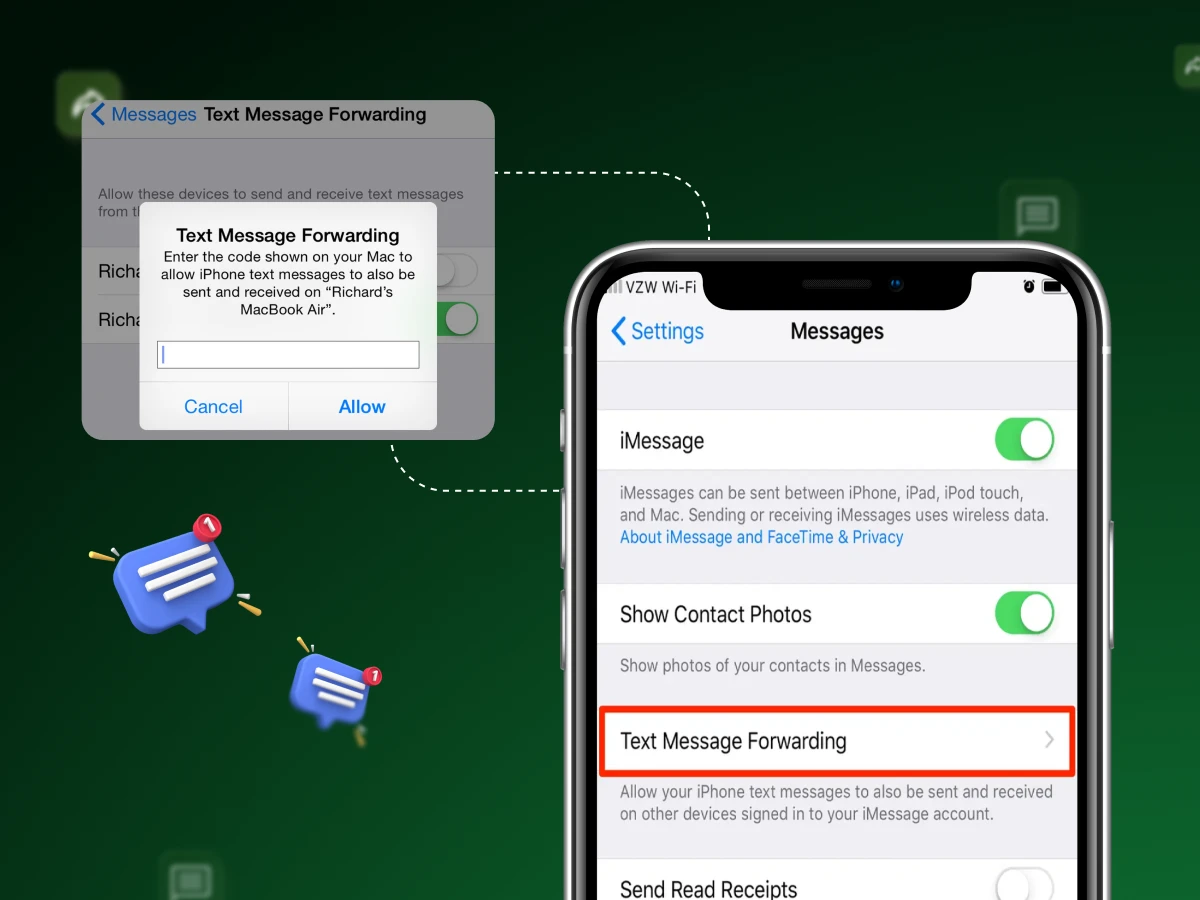
Forwarding a text feels small until the moment turns urgent. People switch between devices every day, which creates pressure when a message must move quickly.
A message sits in the phone, yet the user needs it on another screen because life rarely waits. Every device shows different menus, which slows people down during critical moments.
This guide clears that confusion by showing how to forward a text on every phone. You see manual steps, automated tools, and safe ways to handle sensitive data. You also learn hidden features that competitors ignore.
Forwarding text messages requires a few simple items. These items stay the same for most phones because the process relies on basic tools. The list below helps you check everything before you forward the message or use any forward option on your device.
You will need:
These tools help you send a message on an iPhone or Android device without errors, as each supports your message transfer. Different devices may show different buttons. You still follow the same logic because every platform uses a simple message path.
Text message forwarding sends an existing message from one device to another. People use it when they want to share details quickly. The process works through the messages app because the system copies the text and sends the message to a new contact.
A message on iPhone includes a forward option in the message thread. Android follows a similar approach, helping users move information without rewriting anything. Forwarding text messages remains useful for personal tasks because the method saves time and reduces errors.
Forwarding text also supports business needs. Some teams use it when they receive text data from clients. Others move important messages to email because they need better storage. This simple method gives structure, because the message appears in the right place quickly.
Many users confuse SMS forwarding with in-app forwarding. They see WhatsApp or Messenger and expect the same rules to apply. SMS still works differently because it uses the phone network.
Text forwarding matters for any business that handles daily business communication. Teams receive text updates from customers, partners, and staff, which means every message becomes part of important records.
Businesses also use text forwarding to move a message on an iPhone or Android into shared systems. A messaging app stores data in a single place, which can cause delays during busy hours. Forwarding improves access because the message thread travels to shared inboxes, email accounts, or computer tools where teams work together.
A company responds faster when it uses forwarding text methods for daily tasks. Staff members receive text details instantly on the correct device. This reduces waiting time because important updates move through the forward option instead of staying locked in one phone.
Teams often need clear message paths. Forwarding a message helps different roles understand customer needs because the copy and paste method or the forward option keeps information accurate. Everyone sees the same details, which prevents confusion across service teams.
Businesses store conversations for safety. Forwarding text messages to email keeps records in one secure space. A message on iPhone or Android becomes easy to archive, which helps managers track complaints, product issues, or inappropriate content without searching through many devices.
Remote workers rely on shared systems. When you forward the message to computer tools, the workflow stays smooth because every update appears in one dashboard. This helps staff work from any place without carrying extra devices during important tasks.
Manual rewriting creates mistakes. Forward text messages removes typing risks because the details move directly through the messages app. This keeps customer information clear and reduces follow-up confusion during high-demand hours.
Many industries follow strict rules. Forwarding a message to a secure email or a shared inbox protects the company because the data stays traceable. This helps meet audit, refund, or dispute-check policies without missing key information.
Industry Solutions
Aug 19, 2025
Read More
Sales & Marketing
Nov 18, 2025
Read More
Learning how to forward a text manually remains useful for people who want a simple method without extra tools. The steps work the same way on most phones because the messages app uses a clear structure. You only need access to the message thread and a stable network.
Most users start inside the message thread because every text sits in one place. You open the messages app, choose the correct chat, and then find the message you want to move. This keeps the process organized because you work with one item at a time.
The manual method uses a long press. You hold a message until a menu appears. Phones display different icons, yet the idea stays the same. This step triggers the system because the phone identifies the message as something you want to share.
After the menu shows up, you choose the forward option. This moves the selected text into a new screen. The system prepares the content because it needs to place the message into a blank message box. You can edit the text if needed.
The phone now asks for a receiver. You select a number from your list or type a new one. This keeps control in your hands because you decide where the message goes. Many people use this step for simple tasks or quick updates.
The final step stays easy. You press the button to send the message. The phone uses your network to push the text forward. You now finish the process without tools, which makes manual forwarding the simplest method for most daily needs.
Forwarding a message on iPhone stays simple because the messages app shows a clear path. Users follow a short process inside the message thread. The steps stay consistent across all models, including mini, standard, and pro max devices, which keeps the method stable.
Please follow this process:
The iPhone protects the layout inside the new thread. This matters when people share links or map pins. The feature prevents confusion by providing clear information without broken text.
Some users try forwarding items that the system blocks for safety. iOS filters possible inappropriate content in some regions. These filters protect users from unsafe files. Forwarding clean text remains safe. The phone only blocks harmful data.
People who own Apple devices can receive texts on their Macs or iPads. This makes the forwarding path flexible. Users open the synced message thread on the computer and move text from there. The method helps those who handle long conversations.
Forwarding a message on Android stays simple because most phones follow the same pattern. The layout may change across brands like Samsung, Pixel, and OnePlus. The steps remain familiar, so users can forward text messages without confusion across different models.
Please follow this process:
Android highlights links inside the message thread. This helps people forward important items like addresses or codes. The system keeps the link format clean, which protects clarity for the new recipient.
Android filters possible inappropriate content. Some regions use stricter filters to block harmful files. These rules protect users from unsafe data. Plain text remains safe for forwarding.
Many Android phones link with computers. Users open the synced thread on a larger screen and forward text messages from there. This helps people who manage long or busy message lists.
Forwarding inside internet apps works differently because each platform uses its own rules. The messages app on your phone handles SMS, while WhatsApp or Messenger uses internet data. This section shows quick steps for both apps.
The method helps people avoid confusion because many users mix SMS forwarding with app forwarding.
Forwarding on WhatsApp stays simple because the app gives a clear forward icon. The method works the same on Android and iPhone. The app also protects your privacy because it labels a forwarded message for the recipient.
Please follow this process:
WhatsApp limits how many chats you can forward at once. This keeps the platform safe because it reduces spam. Users must forward sensitive text carefully. The app labels the message so people understand its source.
WhatsApp compresses media before forwarding. Images or videos may look smaller. People who want full quality use the copy and paste method or forward the file as a document.
The new WhatsApp system allows multiple device logins. You can open the same message thread on a PC and forward from there. This solves issues for people who use computers for daily work.
Messenger uses a simple long-press method similar to WhatsApp. The design stays straightforward. The app offers fast controls, which help people forward text during busy tasks.
Please follow this process:
Messenger keeps link previews attached to forwarded text. This matters when you send map directions or meeting links.
Messenger blocks harmful files automatically. People sometimes think the forward option is broken, but the system protects users from unsafe attachments.
Messenger works on browsers and apps. Users can receive text on a computer and forward it from there without their phone nearby.
Auto-forwarding helps people move messages without opening the messages app every time. Many users need this feature when they receive text alerts, work updates, or device codes. The process supports stable forwarding because the phone follows a fixed rule created by the user.
Users often use auto-forwarding when they travel or manage two phones. The feature also helps those who jump from phone to PC, because it saves time. The steps stay different on Android and iPhone, yet the goal stays the same. The phone forwards the message automatically.
Android allows automation with simple tools. Some brands offer built-in rules. Others require a small helper app. The steps stay short, and users only follow them once because the rule keeps working in the background.
Please follow this process:
The iPhone does not offer a default auto-forwarding button. The Shortcuts app fills this gap. It creates a small personal automation that watches for new messages. The feature stays native, which protects user data without extra downloads.
Please follow this process:
Forwarding a message to an email or a computer helps users who want better storage. Many people move text to a PC when they need a long-term record. The messages app supports simple transfers, which keeps the process clean on every device.
Please follow this process:
People often want a message on an iPhone or Android to appear on a laptop. This helps with work tasks. It also helps users who save files or links for later. The steps stay short and clear.
Please follow this process:
Personal phones feel convenient for quick tasks. People depend on them for daily chats, work updates, and quick reminders. The problem appears when message volume grows. Forwarding text messages no longer feels simple because the process takes time and increases the chance of errors.
Many users discover that the messages app becomes crowded. Important text data mixes with casual chats. Business users feel this more because they receive text from clients, vendors, and systems. A single device cannot support heavy tasks without delays or missing messages.
Below are the key points businesses must understand. Each point explains why personal devices fall short and why forwarding text messages becomes a burden as needs grow.
Forwarding sometimes fails because the messages app blocks certain items. Users think the phone breaks, but the issue often comes from the sender or the carrier. The message thread may also hold files that the device refuses to move across networks.
Many users also face problems when they forward text messages with images. Some carriers limit large files for security. The phone shows a red icon when the transfer fails. People must check the message size before they choose the forward option again.
Below are the most common problems and the simplest fixes:
This happens when the message uses unsupported formatting. Some senders use systems that block forwarding. Users solve this by using copy and paste to send the message manually.
This happens when the network strength drops. People wait a few seconds and try again. Turning airplane mode on and off resets the connection. The message usually goes through after the signal refresh.
Some carriers block large files. Users compress the file or remove the attachment. Forward text messages without the file and send the image later. The method keeps the text safe and prevents failed attempts.
iOS blocks suspected harmful links. Users remove the link and forward only the safe part. This fix prevents system alerts and keeps the message clean inside the new thread.
Some systems block forwarding for security. These codes protect accounts. Users never forward these codes because the action risks access loss. New codes always stay private to protect the device and accounts.
Business phones often turn off forwarding. Company policies block message movement. Users check with the admin team because the setting usually stays locked.
Some devices require a quick restart after a SIM change. The phone updates the network path. Users restart the device and open the messages app again for fresh access.
Forwarding a text message should never feel complex. You learned how to forward a message manually, how to auto-forward, and how to move texts across devices with fewer errors.
You also saw safety rules that protect private information, which gives trust during daily tasks. When the phone refuses to forward, the fixes stay easy. With these tools, you control the message flow instead of chasing menus.
People do not see any alert when you forward text messages. The messages app does not send a notice. The original sender stays unaware because the phone treats the action like a normal share.
Open the message thread and select the text. Tap the forward option and enter the email address. Send the message like a normal SMS. The message appears in the inbox as plain text.
Phones do not include a hidden auto-forwarding tool. Some apps offer parental control features. These tools send alerts openly. Hidden monitoring stays unsafe. Use transparent methods for trust.
Phones support forwarding single messages or selected parts. Full chain forwarding stays limited. Select multiple messages inside the thread. The phone sends them as one combined piece.
