

VoIP Phone Explained: A Beginner’s Guide

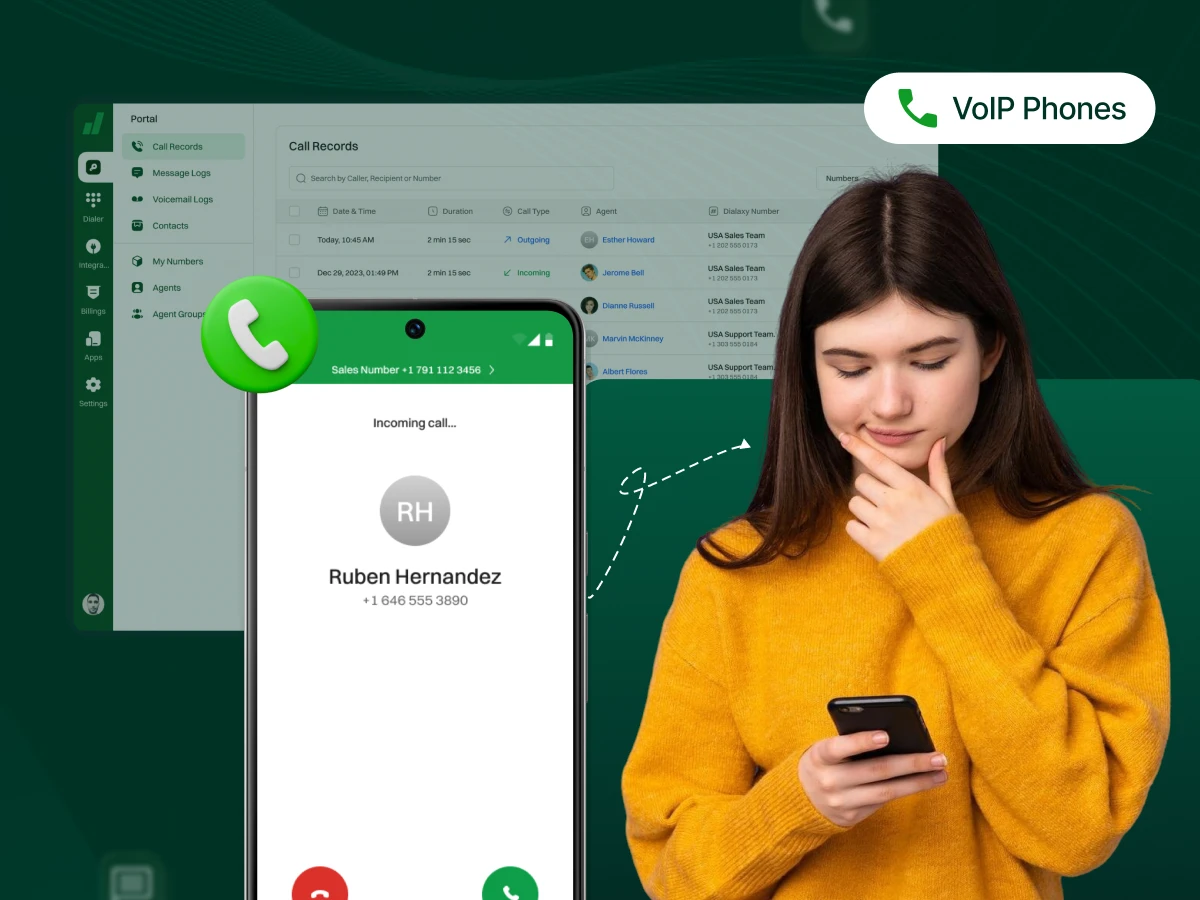
Are you tired of expensive phone bills and limited calling options? A VoIP phone could be your solution. It makes calls over the internet, saving money and adding smarter features.
This phone isn’t just for offices. You can use its app on a computer or mobile device to stay connected from anywhere. It provides video calls, messaging, and integration with business tools.
Modern communication is being shaped by VoIP technology. It makes collaboration, remote work, and international calls easier than ever.
The blog explains what makes a VoIP phone different and why that matters. You’ll learn practical steps to switch from traditional systems.
A VoIP phone (Voice over Internet Protocol) is a device that makes and receives calls through the internet rather than copper telephone lines. Your voice is converted to digital data and transmitted over the internet to the other person.
These phones are compatible with various devices. You can use a physical desk phone on your table. You can use an app on your computer or mobile phone. Both types connect through your internet and give you the same basic calling features.
The main difference from regular phones? VoIP does not need copper cables or a telephone jack in your wall. It runs through your existing internet infrastructure. This is cost-effective and more flexible than the old landline systems.
Now, let’s take a look at the types of VoIP phones.
VoIP phones come in various types to suit different requirements and budgets. Depending on the location of work and method, each type has its benefits.
Hard phones are the physical phones that look like the old desk phones. They connect to your network via an Ethernet cable instead of a phone jack. Most models are compatible with Power over Ethernet (PoE), meaning one cable provides power and internet. In offices that require a dedicated 24/7 phone system, hard phones are reliable.
The popular brands include Yealink, Grandstream, Poly VVX, and Cisco.
Softphones are apps that transform your computer or mobile device into a VoIP phone. You download the app and start making calls using your phone’s microphone and speakers. No physical phone equipment needed. Softphones work anywhere online and often have video and messaging features.
Some popular options include Zoom, Microsoft Teams, and various VoIP provider apps.
Analog Telephone Adapters (ATAs): The adapters connect the VoIP service to your old analog phones. The ATA is connected to your router and converts traditional phone signals into digital data. Ooma Telo is a popular model that can be used in the home or small office units.
VoIP Headsets: Headsets connect to your computer or IP phone for hands-free calling. Many feature noise reduction to block background sounds. Bluetooth headset models let you move freely when making calls. High-quality headsets improve comfort and call clarity for long conversations.
You might wonder if VoIP phones are any different than traditional phones. When you are selecting a system, the differences matter more than you think. Let’s take a quick look at how they compare.
| VoIP Phones | Traditional Phones |
|---|---|
| Uses the internet (IP network) | Uses analog phone lines (copper wires) |
| Usually lower cost, especially for long-distance or international calls | Usually higher cost, especially for long-distance |
| Advanced features: video calls, call forwarding, voicemail-to-email, conferencing | Basic features: calling, voicemail, caller ID |
| Can be used anywhere with internet on phones, computers, or apps | Tied to a physical location |
| Call quality depends on internet speed, requires PoE or external power | Stable call quality, powered through the phone line |
VoIP call setup is a quick process with a few steps. The voice does not follow the same route as it does through traditional phone systems. Here’s how your voice travels over the internet:
You speak into your phone, headset, or microphone. The device captures your voice as sound waves. Your VoIP phone or softphone then converts these analog sound waves into digital data. This happens through compression using codecs like G.711. The conversion takes just milliseconds.
Digital voice data gets broken into small packets. Each packet contains a piece of your conversation plus routing information. Session Internet Protocol (SIP) controls the labeling and transmission of these packets. Call encryption using SRTP and TLS protects your conversation from interception.
The packets are sent via your internet connection to the other individual. They pass through your router, your IP service provider, and the different IP networks. The packets may follow various routes on the Internet. All of them reach their destination within milliseconds.
The receiving device accumulates all the packets received. It gets them in the right sequence. Then it translates the digital data back into analog sound waves. The other individual hears your voice using his/her speaker or headset. This is a two-way process that occurs simultaneously.
There are times when you make calls through a traditional landline. A VoIP-to-PSTN (Public Switch Telephone Network) gateway converts your VoIP call so it uses the old phone network. Your VoIP provider handles this conversion behind the scenes. SIP trunking deals with connections between phone systems. This allows you to access any phone number across the world.
This technical process delivers real advantages for users.
The benefits of VoIP go beyond just making phone calls cheaper. Here are the key advantages that change how your business communicates.
VoIP cuts your phone expenses in a big way. Businesses typically save 30-50% compared to landlines. You eliminate phone line rental fees. Long-distance and international calling costs much less or comes free with your plan.
Adding new users doesn’t require expensive installation visits. You skip charges for phone wiring and maintenance. Cloud VoIP services remove the need for costly PBX hardware. Your VoIP service provider handles the technology and updates. These savings add up fast for businesses of any size.
Your phone system grows with your business. Adding phone numbers or users takes just minutes through your management portal. No waiting for technician visits or new wiring. You can scale up during busy seasons and scale down when things slow.
New offices in Arizona or anywhere else? They connect to the same system with no extra infrastructure. Remote team members get full phone system access instantly. This flexibility supports your growth plans without the old limitations. Small businesses get enterprise-level features without enterprise costs.
Your phone number goes wherever you go. Take calls on your laptop at home or on your mobile phone while traveling. Switch between devices during a conversation without dropping the call. The cloud phone system provides complete phone system access from anywhere.
Remote work becomes simple with VoIP Mobility. Team members work from any location with internet. You never miss important calls when away from your desk. This benefit became crucial as more businesses adopted flexible work arrangements. Your business communication stays connected regardless of where people work.
Easy setup gets you running in hours instead of days or weeks. Most VoIP phone systems don’t need technician visits for installation. Onboarding new team members takes minutes through a web portal. You can handle most tasks yourself without technical knowledge.
User management and settings updates happen online from anywhere. Your provider handles firmware updates and system maintenance behind the scenes. No need to schedule service visits or manage complex equipment. This saves time and reduces the hassle of managing your phone infrastructure.
Connect your phone to your CRM and other business tools. CRM integrations show caller information when someone calls. You can click to dial straight from your CRM systems or email. Call logs update in your CRM platforms without manual entry.
Microsoft Teams, Zoom, and other tools integrate with your VoIP system for unified communications. Share video and screens on calls with a single click. Meeting rooms use conference phones that are connected to your VoIP platform. These integrations make your work smooth and save time.
Setting up your VoIP phone is not as time-consuming as you may imagine. Follow these steps based on the type of phone you chose.
Open your new desk phone box and check all items. You should find the phone, Ethernet cable, and handset cord. A few of these non-POE-supportive models include a power adapter. Ensure that you do not miss anything in the setup.
Insert the Ethernet cable in the network port of your phone. Connect the other end to your router or network switch. If your phone supports PoE, this cable provides both power and data. Non-PoE models need the power adapter to be plugged into a socket.
Press the power button to use your phone, although it activates when it is connected. When the screen boots up, the logo of the manufacturer appears. Wait 1-2 minutes to start the phone. The display will show a main screen when ready.
Go to the phone’s settings menu in a web browser. Enter the SIP username, password, and server address from your VoIP provider. Some providers offer auto-provisioning that downloads settings without manual entry. Save the settings and wait for the phone to register.
After registration, make a test call to verify the phone works correct. Test outgoing and incoming calls for clear audio. Adjust the volume levels for the handset, speaker, and ringer. Test any additional features, such as speed dial or a headset port.
Visit your VoIP provider’s website or app store. Install the softphone app on your mobile phone, desktop, or laptop. A softphone is a flexible business phone that can be used by remote workers or a hybrid team. Make sure to use the appropriate version for your operating system. Install the app in normal install mode.
Open the softphone app after installation. Enter your login credentials provided by your VoIP provider. Some apps use email and password, while others need SIP account details. Complete any necessary account verification steps.
Select your microphone and speaker devices in the app settings. Check audio settings to ensure they function properly. Connect via USB or Bluetooth if you want to use the headset. Grant the app permission to access your microphone when prompted.
Configure your call settings, like call forwarding rules. Add important contacts to your speed dial list. Set your availability status and voicemail greeting. Link your mobile phone number if the feature is available.
Place a test call to verify things work correct. Check the audio quality on both ends of the conversation. Test the video feature in case you want to use video calling. Attempt using the microphone and speaker functions in the call.
Connect an Ethernet cable to your router and plug in your ATA adapter. Plug the ATA into an outlet using the power cable. Wait for the device lights to turn on and become steady. This boot process takes about 1-2 minutes.
Insert your regular analog telephone in the phone port of the ATA. Take a regular phone cord that fits an RJ jack. Ensure a secure connection on both ends. Your existing phone should now have power if the ATA provides it.
The ATA web interface can be accessed using the IP address in a browser. Log in using the default credentials in the user manual. Use your SIP credentials that your VoIP service provider has given. Save the configuration and restart the ATA if required.
Pick up your phone and listen for a dial tone. Make a test call to verify outgoing calls work. Have someone call you to test incoming calls. Ensure that caller ID, call waiting, and other features are functioning with your analog phone.
VoIP phone systems include many features that improve your daily communication. Start using these to get the most value from your service.
An auto attendant is a call answering system that does not require human assistance. It welcomes callers and provides menu options such as 1 for sales or 2 for support. This makes a small business sound professional.
You can have various greetings during business hours and after hours. Make a call via route to cellular phones or voicemail when the office closes. Update the menu through your management portal anytime. This feature saves money by handling basic routing without a receptionist.
Call forwarding lets you route incoming calls to other destinations according to the rules given. For example:
Create various forwarding rules in various scenarios. The calls can be forwarded to voicemail, another group member, or your cell phone. You do not miss major calls even when out of the office. Remote work and flexibility need this feature.
Call routing redirects incoming calls to the appropriate person or department according to preset rules. The system can route by caller ID or time of day. This allows callers to call the right person without transfers.
Create time-based routing for different shifts or time zones. Priority routing ensures important or repeat callers connect directly with experienced agents. Proper call routing is useful in minimizing wait time and enhancing customer service.
Voicemail-to-email converts your voicemail messages into audio files in your mailbox. Listen to them on any device without calling in. Many systems include transcriptions so you can read messages instead of listening.
Set different voicemail greetings for different situations. Update your business voicemail message from anywhere. Forward important messages to team members with one click. This feature helps you manage messages better than traditional voicemail.
Video calling turns voice calls into face-to-face video meetings with one button. Share your screen during calls to show documents or presentations. Use conference phones with video capability for group meetings.
Video features work great for remote team collaboration. Show products to customers during sales calls. Train employees face-to-face from different locations. Video calling creates stronger connections than voice alone.
Call recording captures and saves your phone conversations for later review. Record calls for training or quality purposes. Share recordings with team members who missed the call.
Make sure you follow legal requirements for call recording. Many systems announce recording to callers at the start. Store recordings secure and delete them when no longer needed. This feature helps improve customer service and resolve disputes.
CRM integration connects your phone system to your customer relationship management software. Your phone shows caller information from your CRM when someone calls. Click a number in your CRM to dial without typing.
Call logs update in your CRM systems without manual entry. You see the purchase history and notes before answering. Link calls to deals or support tickets. Track call activity without extra work. This feature boosts productivity for sales and support teams.
Picking the right VoIP service provider affects your daily communications. Use this checklist before you commit.
Ask about:
Test the service before buying. Most providers offer free trials.
Look beyond the monthly rate. Check for:
Some VoIP providers charge extra for call recording or advanced call routing.
Make a list of must-have call features:
Business needs differ from home needs. Know what features matter to you.
Check integrations with tools you use:
Good CRM integrations boost productivity for sales teams.
Verify the provider supports:
Some providers lock you into their phone equipment. That limits your options.
Contact support before buying. See how quick they respond.
Key support features:
Bad support ruins good VoIP service.
Ask about:
Your business might grow. The VoIP solution should grow, too.
Security protects your business conversations. Look for:
These features matter more for business VoIP.
Can you keep your existing phone number? Most providers support number porting.
Check:
Take your time with this decision. The right VoIP provider makes your communications better. The wrong one creates daily frustration.
Even the best VoIP systems can face problems from time to time. Here are the most common issues and their simple fixes.
Choppy audio, echo, or dropped words during calls.
How to Fix?
You can hear the other person, but they can’t hear you, or vice versa.
How to Fix?
Calls disconnect without warning.
How to Fix?
Your phone can’t register with the VoIP service.
How to Fix?
There’s a noticeable delay during conversations.
How to Fix?
Your VoIP phone stops working when the power goes out.
How to Fix?
VoIP phones are changing how we communicate at work and home. You get better features at lower costs than old landlines. Your phone works wherever you have internet. That kind of flexibility wasn’t possible ten years ago.
The switch doesn’t need to happen overnight. Start with one or two users to test the service. See how it works for your specific needs. Then expand when you feel confident about the system.
Your next phone bill could be 40% lower than what you pay now. You’ll get features that used to cost extra or weren’t even available. Take the first step today and contact a VoIP provider for a trial. Your communication deserves an upgrade.
Yes, VoIP technologies serve as a complete landline replacement for most businesses. Phones receive calls over the internet with better features and lower costs than landlines.
Not all VoIP phones support wireless headsets. Look for models with Bluetooth 4.2 or higher, or a dedicated DECT wireless headset port.
A phone bundle costs less than buying items separate. Bundles include the phone, cables, and sometimes headsets at a discount price.
Yes, the Grandstream GRP2613 offers a modern touch screen ideal for busy offices. The Yealink T33G is reliable, affordable, and supports essential VoIP technologies for daily business calls.
BNo, VoIP voice calls work fine on standard 100 Mbps Ethernet connections. Gigabit Ethernet helps when you use video calling or run many phones on one network.
