

How to Resolve Cloud PBX Registration Failures

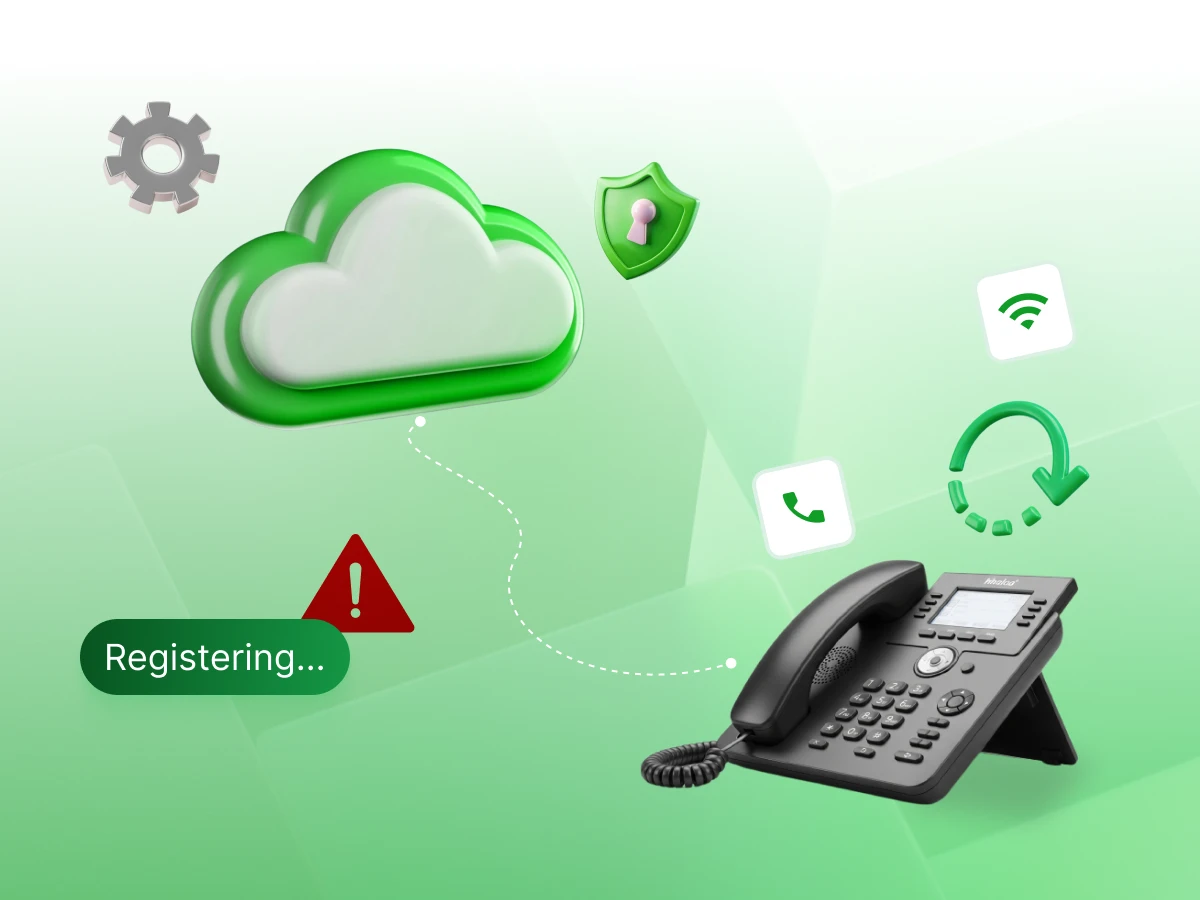
In today’s busy business world, your phone system is the heart of your company. Switching to a Cloud PBX like Dialaxy is a smart move that saves money and lets you work from anywhere.
However, nothing stops your work faster than seeing a “No Service” message on your screen. Cloud PBX registration failures are like a locked office door; if your phone can’t “check in” with the server, you can’t make or take calls.
Whether you are dealing with a frozen Yealink phone, a router block, or a confusing error code, knowing why it happened is the first step to fixing it. This guide uses simple steps to help you understand how to resolve cloud PBX registration failures.
A traditional phone system is like a dusty, wire-tangled box in your office closet. It was expensive to fix and required drilling holes in the walls just to add a new user. A Cloud PBX (like Dialaxy) moves that box to the internet. By living in a secure data center instead of your closet, it stays powerful, flexible, and easy to use.
Since the system is in the cloud, your IP phone acts like a doorway. It uses your regular internet instead of old copper wires, letting you take your desk phone home and plug it into any router. You are no longer tied to one desk; your phone system works wherever you have a good internet connection.
Also, this technology means you don’t have to deal with a difficult setup in your office. Instead of a worker spending all day running cables, you simply connect your Yealink, Fanvil, or Snom device to your network.
The Cloud PBX handles the call routing, voicemail, and call rules through the web. This means adding a new worker is as simple as clicking a button on a screen and mailing them a phone that is already ready to go.
Experience a seamless cloud phone system designed for modern reliability.
Think of registration like checking into a hotel. Even if you’ve paid for your room, you can’t use the elevator until you show your ID at the front desk and get a key card. In internet calling, registration is when your phone introduces itself to the Dialaxy server, saying, “I am extension 101, and here is my specific IP address.”
If your phone doesn’t “check in” with the cloud server, it doesn’t have the “key” to start or pick up calls. When the server doesn’t know where your phone is on the huge map of the internet, it cannot send incoming calls to your desk.
In the same way, if the server doesn’t recognize your phone’s login details, it will block any call you try to make. A registration failure is just the server saying, “I don’t know who you are yet, so I can’t let you use the phone lines.”
To fix a registration failure, you must understand the working flow of the connection. This is a three-step process we call the “Handshake.”
Your phone sends a digital packet across the internet. It’s basically a broadcast saying, “Hey Dialaxy! I’m a Yealink T54W (or a T46U, T53W, etc.) located at this IP address. Are you there?” This packet travels through your router, your ISP, and across several internet hubs before reaching our server.
Our Dialaxy server hears the shout and responds immediately. However, for security, it doesn’t just open the door. It says: “I hear you! But who are you? Prove it with your Auth ID and Password.” This is where the SBC (Session Border Controller) often steps in to manage the traffic and ensure the request is legitimate.
Your phone sends the encrypted credentials back. Our server checks its database. If the MAC address and Auth ID match, the server says, “Everything looks good. You’re checked in. Go ahead and make some calls!” At this point, the status on your screen changes from “Registering” to “Registered.”
Imagine a security guard at a gated community.
Call & Contact Center
Oct 17, 2025
Read More
A registration failure message on your phone indicates that the talk between your device and the server was stopped at Step 1, 2, or 3. Maybe the “Shout” didn’t get to us, or the “ID Check” failed due to a tiny mistake.
Now that you’re familiar with the correct working of the system, we can get down to real-life solutions. We’ll start with the simplest, most frequent fixes and then proceed to the deeper technical settings of your network.
These phases are divided to accurately address the question to “How to resolve cloud PBX registration failures”. Let’s dive into it.
Before we dive into the deep technical settings, let’s try the “low-hanging fruit.” These simple steps solve a surprising number of phones that failed to register issues.
It sounds like a cliché, but unplugging your phone’s power cable (or the Ethernet cable if it uses PoE) for 30 seconds fixes about 50% of registration errors. Over time, small errors can build up in a phone’s memory; a reboot is like a fresh start for the device.
Look at the back of your phone. There are usually two ports: LAN and PC.
Is your computer working? Open a web browser and go to a news site. If your internet is down for your computer, it’s down for Dialaxy. Your phone is a mini computer at best, with the ability to make calls being the only thing that is a little bit “old-fashioned”. If the internet is working but the phone is dead, then you might want to check if the cable or the wall jack is the problem by plugging the phone’s cable directly into your laptop.
In the same way that your smartphone needs updates, your desk phone also needs a current firmware version. Various manufacturers like Yealink, Poly, Fanvil, and Snom release updates in order to accommodate new security protocols.
If you are running an old version (similar to an outdated V84 build), then your phone might not be capable of supporting the latest SSL certificates that are being requested by our servers. Grab the latest release from the manufacturer’s site and install it.
If your phone has power and a stable internet connection, but your phone will not register, the culprit is often a simple typo. Unlike logging into a social media account where you might get a “Wrong Password” hint, a Cloud PBX login is a strict, automated security exchange.
If a single character is off, the SIP registrations will fail immediately for security reasons. Our servers are designed to be very picky to keep your business calls safe from hackers.
In the digital architecture of Dialaxy, security is the top priority. You have to understand that “MyPassword123” is NOT the same as “mypassword123”. To a server, a lowercase “m” and an uppercase “M” are completely different pieces of data.
If you have a password that contains a mixture of different characters and you happen to miss one capital letter, it will reply with a “403 Forbidden” or “Registration Failure” message. So, don’t forget to check the status of your “Caps Lock” key before typing your login details into the web browser configuration page.
To get your IP phone online, you must perfectly align three specific pieces of information. If any of these are incorrect, the registration failure will persist:
The most common mistake we see involves “invisible” characters. When you copy and paste your password or Auth ID from an email or a provisioning file, your mouse often accidentally grabs an extra “space” at the beginning or end of the string. To a Cloud PBX server, a “space” is a real character. If your password is “Secret123”, but you paste “Secret123 “, the connection will fail because the extra space makes the password wrong.
Dialaxy’s servers use a “Security Guard” system called Fail2Ban. If a phone tries to log in with the wrong password 5 or 10 times, the system thinks a hacker is attacking. To protect you, it blocks your entire office’s internet address (IP).
The Sign: If only one phone is down, it’s a typo. If every phone in the office stops working at the same time, you are likely blacklisted.
The Fix: Contact Dialaxy support. We can “unblock” your office in seconds.
Pro Tip: If your registration keeps failing despite the info looking correct, delete the fields entirely and type them out manually. This ensures no hidden formatting or extra spaces are ruining the connection.
Your router acts as the gatekeeper of your network. It is designed to protect your office from hackers and bad traffic. However, because VoIP (Voice over IP) data behaves differently than standard web traffic, your router can sometimes become a little too bossy and block your Cloud PBX calls without you knowing it.
SIP ALG (Application Layer Gateway) is a “feature” found on almost every office router, including those from TP-Link, Netgear, and Cisco. On paper, it is supposed to help VoIP traffic find its way through the firewall. In reality, it acts like a “helpful assistant who accidentally messes up your mail.”
SIP ALG opens the digital envelopes of your phone calls and tries to “fix” the IP address information inside. Because it doesn’t understand the specific way Dialaxy handles traffic, it usually ends up breaking or “shredding” the data instead. This leads to one-way audio, dropped calls, or phones failing to register entirely.
In a corporate office with a strict firewall, the “security guard” might be blocking the specific “gates” your phone uses to talk to the cloud. To fix this, you may need to “Whitelist” Dialaxy. This tells the firewall that traffic coming from our servers is friendly and should not be stopped or inspected.
Ask your IT person to ensure the following ports are open and directed toward our SBC (Session Border Controller):
By ensuring these SIP gateways are open, you allow your IP phone to maintain a constant, steady connection with the Dialaxy cloud, preventing the annoying “No Service” alert from popping up on your screen.
Troubleshooting & Support
Aug 25, 2025
Read More
When your phone sends your voice or login info to Dialaxy, it has to pick a “lane” to drive in. In your phone’s settings (usually under the Account or SIP tab), this is called the Transport Protocol. Picking the wrong one is a common reason why phones suddenly drop their Wi-Fi calling.
UDP is the standard lane that most phones use by default. It’s built for speed. It sends data packets as fast as possible without stopping to check if they actually arrived.
If your phone keeps losing its connection every few minutes, TCP is usually the magic fix. Unlike UDP, TCP is a “polite” protocol. It sends a piece of data and waits for the server to say, “I got it!” before sending the next one. It creates a constant, two-way connection that stays open.
TLS is the most advanced lane. It takes the reliability of TCP and adds a heavy layer of security. It encrypts your connection. This means that even if a hacker managed to “listen in” on your internet line, they would only hear scrambled noise, not your private conversation. It also uses digital certificates to prove that the phone and the server are exactly who they say they are.
Sometimes your phone is working perfectly, and our servers are working perfectly, but they can’t find each other. This is usually a problem with the “map” your internet is using. In the tech world, we call this a DNS issue.
Think of DNS like the “Contacts” list or a “Phone Book” for the internet. Computers and phones don’t actually use names to talk to each other; they use long strings of numbers called IP Addresses (like 1.2.3.4).
Since humans can’t remember thousands of numbers, we use names like sip.dialaxy.com. When you type that name into your phone, the DNS looks it up and says, “Oh, you want to go to 1.2.3.4!” and connects you.
Most phones automatically use the “Phone Book” provided by your local internet company (like Comcast, AT&T, or your local provider).
The easiest way to fix this is to tell your phone to use a more reliable, world-class phone book, like Google’s Public DNS. Google’s “Phone Book” is updated every second and is almost never wrong.
How to make the switch:
By pointing your phone to 8.8.8.8, you ensure it always has the most accurate map to find the Dialaxy servers.
Every brand has a different working flow for its settings. While the idea of a Cloud PBX is the same for everyone, the buttons you press and the menus you see change depending on who made your phone.
Knowing the specific steps for your SIP phone helps you find the symptom of the problem much faster without getting lost in complicated menus.
Yealink phones are very common because they are reliable. Whether you have an older T41S, T41U, T42S, T42U, or T27G, or you use the newer T43U, T46U, T48U, T53, T54W, or T57W, the logic is the same. To check your settings, follow these practical steps:
These brands are great for busy offices, but their menus look different. They usually have a “System” or “Status” page that gives you a specific error code number. These numbers tell you why the phones will not register:
If you use Yeastar hardware with the Yeastar Management Plane (YMP), you have an extra layer of security. If you are working from a home office, you must make sure the SBC (Session Border Controller) settings are turned on. The SBC acts like a safe bridge for your calls. If it is off, the system might block your IP phone to keep the network safe from outsiders.
If you are managing a large office, nobody wants to spend their whole weekend typing passwords into 50 or 100 different phones. That is why we use auto-provisioning. This is a smart way to let your IP phone set itself up without you touching the settings.
When you take a new phone out of the box and plug it into the internet, it doesn’t know who you are yet. It is programmed to go to a “meeting point” called a Provisioning Server Link.
Example: Imagine you buy a brand new Yealink T53W. You plug it in, and the phone immediately asks the RPS server, “Where are my settings?” The RPS server checks its list, sees that your phone belongs to Dialaxy, and sends it the provisioning URL. The phone then downloads its extension number, your name, and your secret password all on its own.
If your phone is stuck on a screen that says “Initializing” or “Checking for configuration” for more than five minutes, you are looking at auto provisioning failures.
Sometimes the problem isn’t the phone or the server, it’s the building or the house you are in. Where you plug into the wall makes a huge difference.
Most home routers from companies like Comcast or AT&T are built for Netflix and gaming, not for professional Cloud PBX calls. One big mistake is “Double NAT.”
Even though newer phones like the T53W or T54W have Wi-Fi built in, we always suggest using a physical cable.
If you have tried the “power nap” and checked for typos, but you still see that “No Service” message, it’s time to call in the experts. At Dialaxy, we want to get you back to work fast. To help us fix your issue in minutes, have this documentation ready before you call:
By having these facts ready, you help us find exactly where the digital connection is breaking. We can see if it’s a router block, a password error, or an auto provisioning issue and get you back to making happy calls immediately!
Mastering the art of resolving cloud PBX registration failures is about more than just clearing an error message; it’s about ensuring your business remains reachable and resilient. From the simple “power nap” reboot to the nuanced configuration of SIP ALG and firewall ports, the solutions provided in this guide empower you to take full control of your communication infrastructure.
By understanding how your phone “talks” to the cloud and identifying the silent killers like hidden spaces in passwords or outdated firmware, you can transform technical headaches into a streamlined, professional workflow.
Join thousands of businesses that trust Dialaxy for crystal-clear, reliable communication..
Start with the “Power Nap”, unplug your phone for 30 seconds, and plug it back in. If that fails, log into the phone’s web settings to check for typos in your Auth ID and Password, and ensure your Server Host matches your Dialaxy domain perfectly.
It is the “digital connection” between your phone and the server. Your phone introduces itself to Dialaxy, providing its extension number and location (IP address) so the server knows where to send your incoming calls.
The most common reason is that your home router is blocking the connection. Go to your router settings and turn off SIP ALG, or if your phone supports it, change the transport from UDP to TCP. Either of these actions will keep the connection going through your home firewall.
If all phones go down at once, your office IP address has likely been blacklisted. This happens if a device repeatedly tries to log in with the wrong password. Contact Dialaxy support to have your IP “whitelisted” again.
Yes. Even if the phone looks like it is “on,” a tiny drop in Wi-Fi signal can break the connection to the server. For the best results, always use a physical Ethernet cable for your business calls.
