

How to Fix One-Way Audio Issue on VoIP Calls? A Technical Guide


You’re on an important client call with your virtual phone system. Everything seems fine. You can hear them perfectly. But when you start talking, you’re met with silence. “Hello? Can you hear me?” Nothing. They can’t hear a word you’re saying.
You’ve just run into the classic one-way audio issue, one of the most frustrating and common VoIP issues in the world of VoIP technology. It’s a common headache for businesses using a modern business phone system. The good news? It’s almost always fixable. You don’t need to be a network engineer to troubleshoot one-way audio.
To help you fix this audio issue permanently, we have come up with this step-by-step technical guide that will allow you to find and fix the problem. First, we will take you through the quick fixes before getting into the deeper solutions, in case there are those that you have to live to see another day.
For those in a hurry, here’s the quick summary of what we’ll cover:
Let’s get your calls back to crystal-clear, two-way conversations.
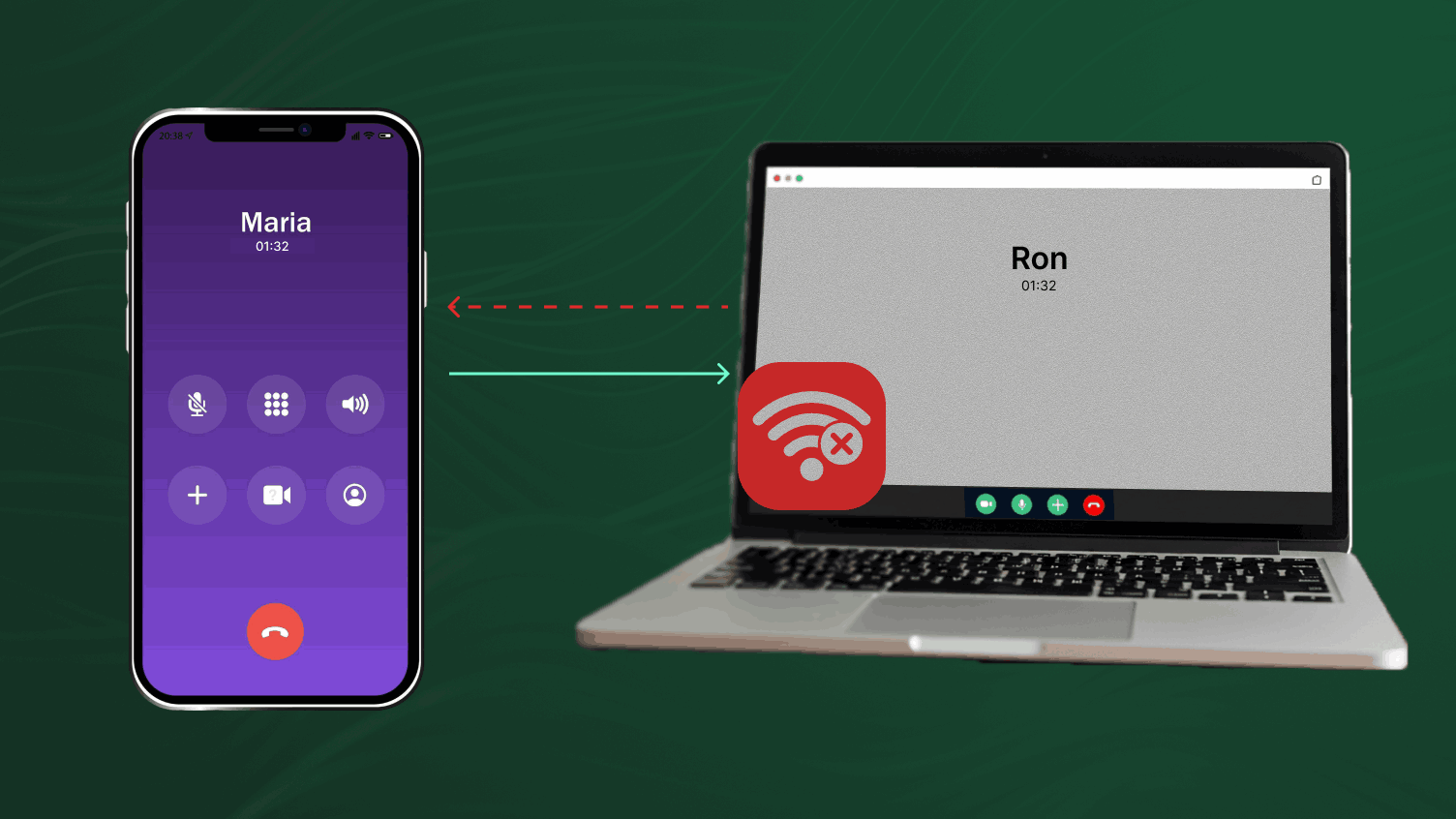
One-way audio is exactly what it sounds like. During a conversation, sound travels successfully in one direction but fails in the other. One person can speak and be heard. The other person’s voice never reaches its destination.
This is different from having no audio at all. If you have no audio, the connection likely failed completely. The one-way audio issue is more subtle. It means the call is established, but the RTP packets (the tiny bits of data that carry your voice) are getting lost on their return journey.
This problem often points to a specific type of network or call routing misconfiguration.
To make VoIP calls, there are two components involved. The first one is SIP (Session Initiation Protocol), which initiates and terminates the call as well. Just consider the SIP to be the dial tone and the greeting of hello that establishes the communication. The second is RTP (Real-time Transport Protocol), which carries the actual audio. RTP is the conversation itself.
In a typical call flow, a one-way audio issue almost always means SIP did its job, but the RTP stream is blocked or misdirected in one direction. Your voice leaves your phone but never arrives at the other end.
Any device can have this problem. You may encounter it either on your desk IP phone, a desktop application on your computer, or even the mobile application on your smartphone. The good news? Most cases can be fixed quickly.
Before we dive deep, try these quick fixes. These five steps solve a surprising number of VoIP audio issues without needing to log into any complex settings.
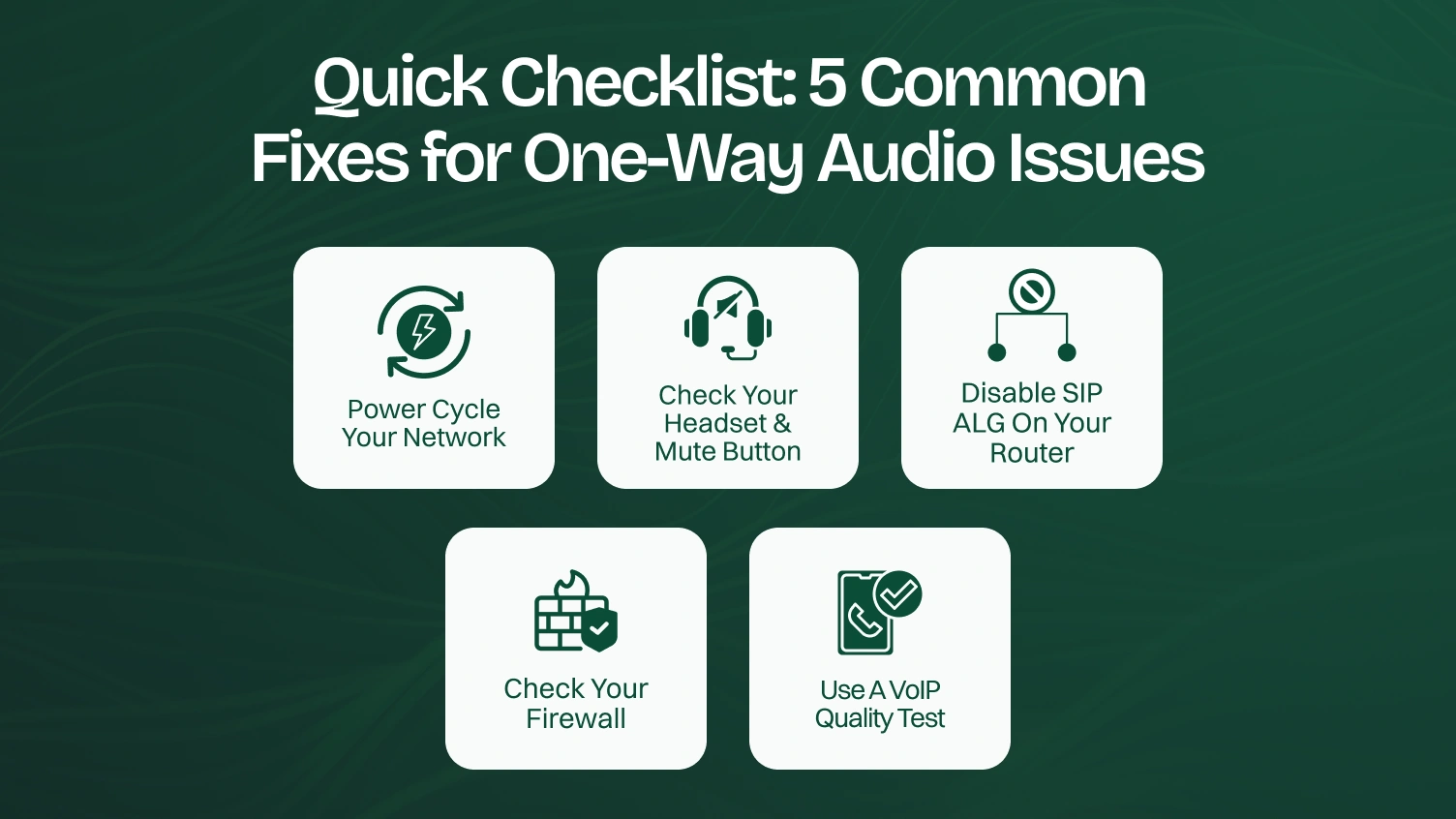
If these steps didn’t work, don’t worry. We just need to dig a little deeper.
To truly fix a problem, we need to understand what causes it. In the world of VoIP, audio issues are often traced back to how your private network talks to the public internet. Here are the technical culprits behind your routing issues.
Network Address Translation (NAT) is a way that routers use to map one or more private IP addresses inside a local network to only one public IP address to communicate with the Internet. It includes changing the IP header of packets so that traffic being sent out looks as if it is coming from the router. This methodology saves the user from public IP addresses and provides an additional security layer.
Cause
The issue arises because VoIP signaling (like SIP) embeds the phone’s private IP address within its data payload, which basic NAT does not inspect. The remote party then tries to send the return audio stream (RTP) to this unrouteable private address, causing the packets to be lost.
Scenario Example
An employee on a private network (192.168.1.50) makes an outbound call to a client. The client can hear the employee perfectly. However, the client’s system attempts to send its audio back to the 192.168.1.50 address, which is invalid on the public internet, so the employee hears only silence.
SIP Application Layer Gateway (ALG) is a router feature designed to inspect and intelligently modify VoIP traffic. Its purpose is to help SIP packets traverse NAT correctly by rewriting IP addresses and port information within the packet data. This process is intended to prevent communication issues like one-way audio.
Cause
The issue is that most SIP ALG implementations are flawed and outdated. Instead of helping, they often misinterpret or corrupt the SIP packets by rewriting them incorrectly, which breaks the communication path for the return audio stream.
Scenario Example
During a call setup, the SIP ALG inspects the SIP packet and attempts to “fix” the contact information. However, due to its buggy nature, it inserts the wrong public IP address or an incorrect port. The remote party then sends audio to this invalid destination, resulting in the caller hearing nothing.
While NAT and SIP ALG are the main villains, a few other things can cause similar symptoms:
Now that we know the suspects, let’s start the investigation.
It can also create problems with online games, file-sharing apps, and viewing security cameras when you’re not at home.
Follow this process from Level 1 to Level 3. Don’t skip steps. The solution is often found in the earliest stages.
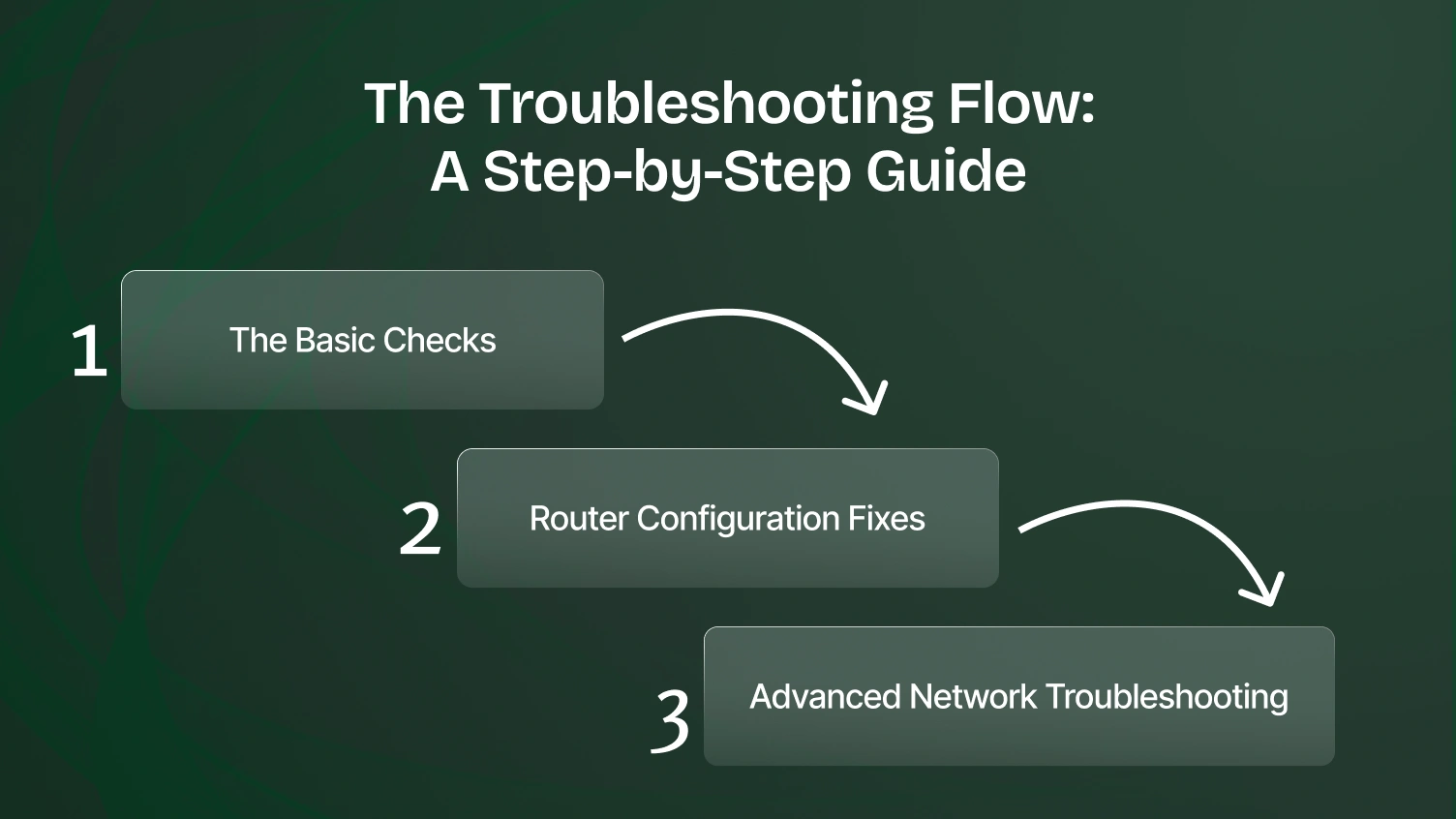
This is your first line of defense. These steps rule out simple hardware or local device problems.
Step 1 – Rule Out the Simple Stuff
Before you touch your network, check your immediate equipment.
This simple check can save you a lot of time.
Step 2 – Power Cycle Everything
We mentioned this in the quick checklist, but it’s worth repeating with more detail. A proper power cycle clears out temporary data in your router, including the NAT table that might be causing the problem.
Follow this exact order:
This process ensures that each device receives a fresh IP address and connection, distinct from the one before it.
Step 3 – Isolate the Problem
Now, we play detective to determine if the problem lies with the device, the network, or the provider.
This step tells you exactly where to focus your efforts to troubleshoot one way.
If the Level 1 checks don’t work and you suspect your network is the culprit, it’s time to log in to your router. Don’t be intimidated. We’ll guide you through it.
This is the most effective single solution to this problem.
A. On iPhone/iPad or Android:
B. On Windows/macOS:
This setting is usually buried in an “Advanced,” “Security,” or “Firewall” menu. The navigation might be a bit tricky on a small phone screen, so zoom in if you need to.
After disabling SIP ALG, make a test call. This often solves the SIP trunk one-way audio issue immediately.
If SIP ALG was already disabled or turning it off didn’t help, the next step is port forwarding. This tells your router to always send specific types of data (like voice traffic) directly to your VoIP device.
You will need to create rules to forward the RTP ports used by your VoIP provider to the private IP address of your VoIP device. You can find this IP address in your device’s settings.
Here are the standard ports used for VoIP:
| Protocol | Port Number(s) | Description |
|---|---|---|
| SIP (UDP) | 5060 | Used for setting up and ending calls. |
| RTP (UDP) | 10000–20000 | A common range for the actual voice data. |
Your provider may use a different range, so always check their documentation. In your router’s “Port Forwarding” or “Virtual Phone Servers” section, create a rule for each required port or range, pointing it to your device’s IP.
Finally, check your firewalls. A firewall can block the outbound RTP traffic that carries your voice.
These Level 2 fixes resolve the vast majority of network-related one-way audio problems.
If you’re still stuck, the issue is likely more complex. Here are a few advanced scenarios.
This is a common issue in home offices where an ISP-provided modem/router is connected to a secondary personal router (like a Google Nest or Eero).
Symptom: You log in to your personal router and view its WAN or Internet IP address. If that address is a private IP (like 192.168.x.x or 10.0.x.x), you have Double NAT.)
Solution: The best fix is to put the ISP-provided device into “bridge mode” or “IP passthrough mode.” This disables its router functions, allowing your personal router to manage the network directly. You may need to call your ISP to have them enable this for you.
This is less common with modern VoIP providers, but it can still happen. As we said, codecs are digital audio formats. Common codecs include G.711 (high-quality, high-bandwidth) and G.729 (compressed, low-bandwidth).
Symptom: The call connects, but the audio is garbled or nonexistent in one direction.
Solution: Log in to your VoIP phone’s web interface or your softphone’s settings. Look for a “Codecs” or “Audio” section. Ensure the list of preferred codecs matches the recommendations of your VoIP provider. Usually, setting G.711u (for North America) or G.722 as the top priority is a safe bet to fix an incompatible codec issue.
QoS cannot fix one-way audio directly, but it can prevent it by guaranteeing that voice packets never drop due to network congestion. QoS tells your router to set voice traffic above anything else (like video streaming, or this large download).
How it Works: You can set a rule in the QoS setting of your router that would allow the traffic of your IP address, or the specific UDP ports that may handle RTP, to be the first in line.
This is a great preventative measure to improve overall call quality and reliability.
You have done all you can. You have rebooted, turned off SIP ALG, ensured that you get no port blocking in your firewalls, and you are still stuck with the same issue of one-sided audio. The professionals should be brought in. This problem is dealt with by your VoIP provider’s support personnel or your IT department in your company each day.
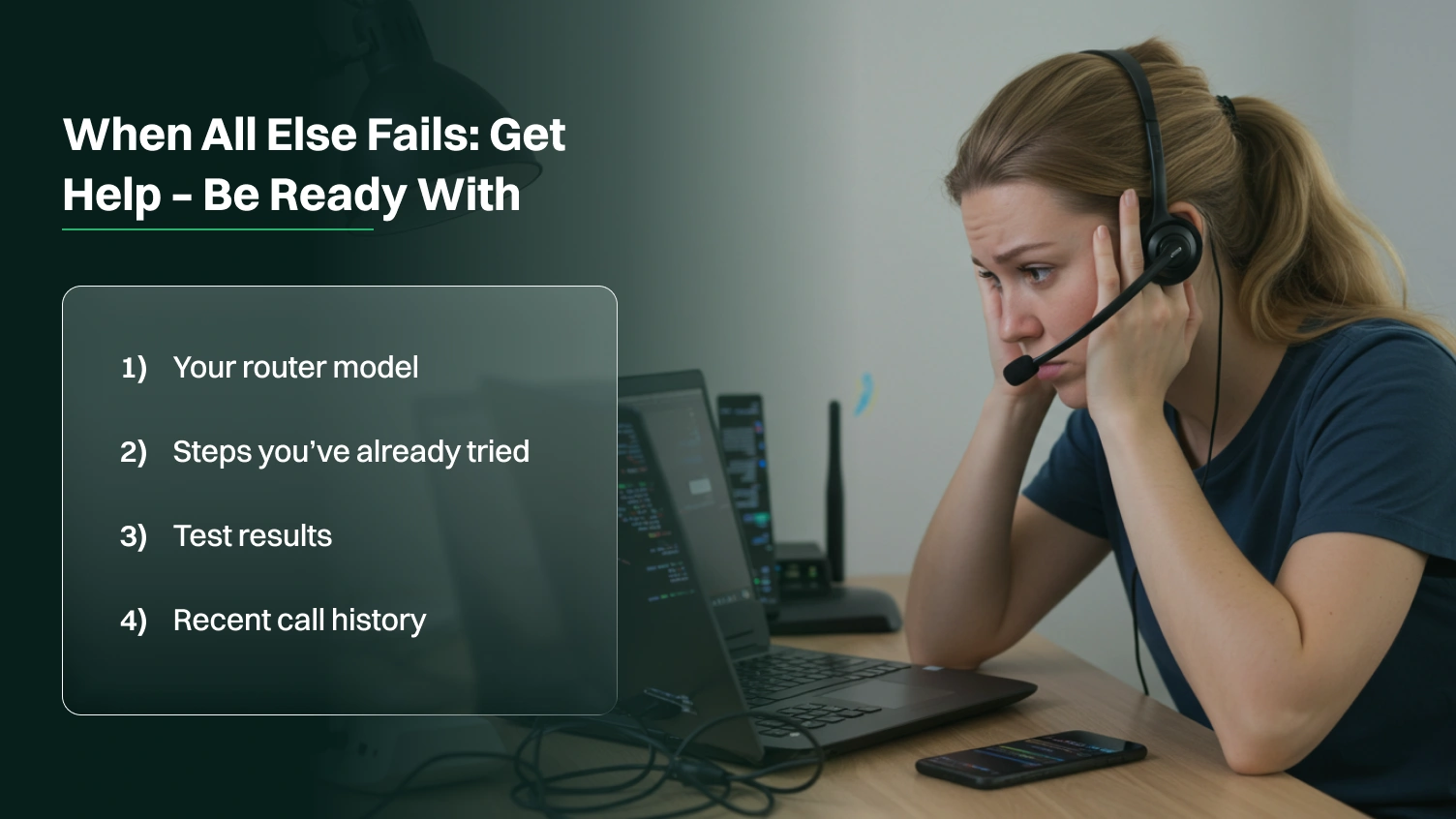
To make the call as productive as possible, have this information ready:
This information will help them diagnose the problem much faster.
Dealing with a one-way audio issue can be a disruptive puzzle, but there is a solution. Almost always, the culprit is the communication between your internal network and the outside internet, and most often, the violators are NAT and SIP ALG.
With a logical troubleshooting flow, you can identify and repair the source cause systematically. Do not forget to eliminate the mundane factors, isolate the issue, and never underrate the might of disabling the SIP ALG.
In a short time, you can have your business phone engine returning to its normal, two-way communication flow that you are accustomed to.
🚀 Still stuck? Do not hesitate to contact your VoIP service provider, such as Dialaxy, or IT specialists for assistance. They possess the equipment and expertise to resolve the most persistent audio issues.
Yes, but it is not common so easily. Slow or unstable connection in general is a factor that tends to create choppy, delayed, or garbled audio (an indicator of packet loss or jitter). Yet, it may, in theory, cause a one-way audio issue if the packets in a particular direction are dropped in most cases. Usually, the problem is not related to speed but to configuration.
This tends to be the case since your cellular phone (e.g., 4G/5G) is a totally separate network, which your mobile app might be able to utilize and which does not experience the local Wi-Fi issues. It identifies the problem that lies in the router settings of your local network (probably SIP ALG or firewall problem) and not in the VoIP provider or account itself.
Yes, that is the most common form of the one-way audio issue, where the audio happens in one direction only. The problem can also be reversed (you can be heard, but you can’t hear them), but the underlying causes and troubleshooting steps are exactly the same. It all comes down to the RTP voice stream failing in one direction.
SIP ALG is an old router option that usually corrupts call data in VoIP call information and leads to the creation of one-sided audio. The most popular solution is to disable it, as it will direct the call data through your router in a proper way.
Step one: Power cycle your network. Unplug your modem, router, and phone, and wait 60 seconds before re-plugging them (in that order, starting with the modem). It is a simple reboot because it resolves the majority of temporary network errors that may cause this problem.
Yes. The situation of double NAT occurs when you have two routers on your network (such as an ISP modem/router and your own router). This mixes voice traffic and is a probable cause of one-way audio.
