

5 Low-Cost Workflow Automation Tools Every Small Business Needs

Small businesses often spend time on manual data entry and repetitive administrative tasks. Employees spend hours copying leads between systems or sending follow-up reminders. These manual tasks tend to consume valuable time and lead to human error.
Workflow automation software solves this by connecting your apps. For example, a new lead can automatically trigger a CRM update or a team notification. Some tools look cheap but get expensive as you grow. You need to understand how usage limits and pricing models work.
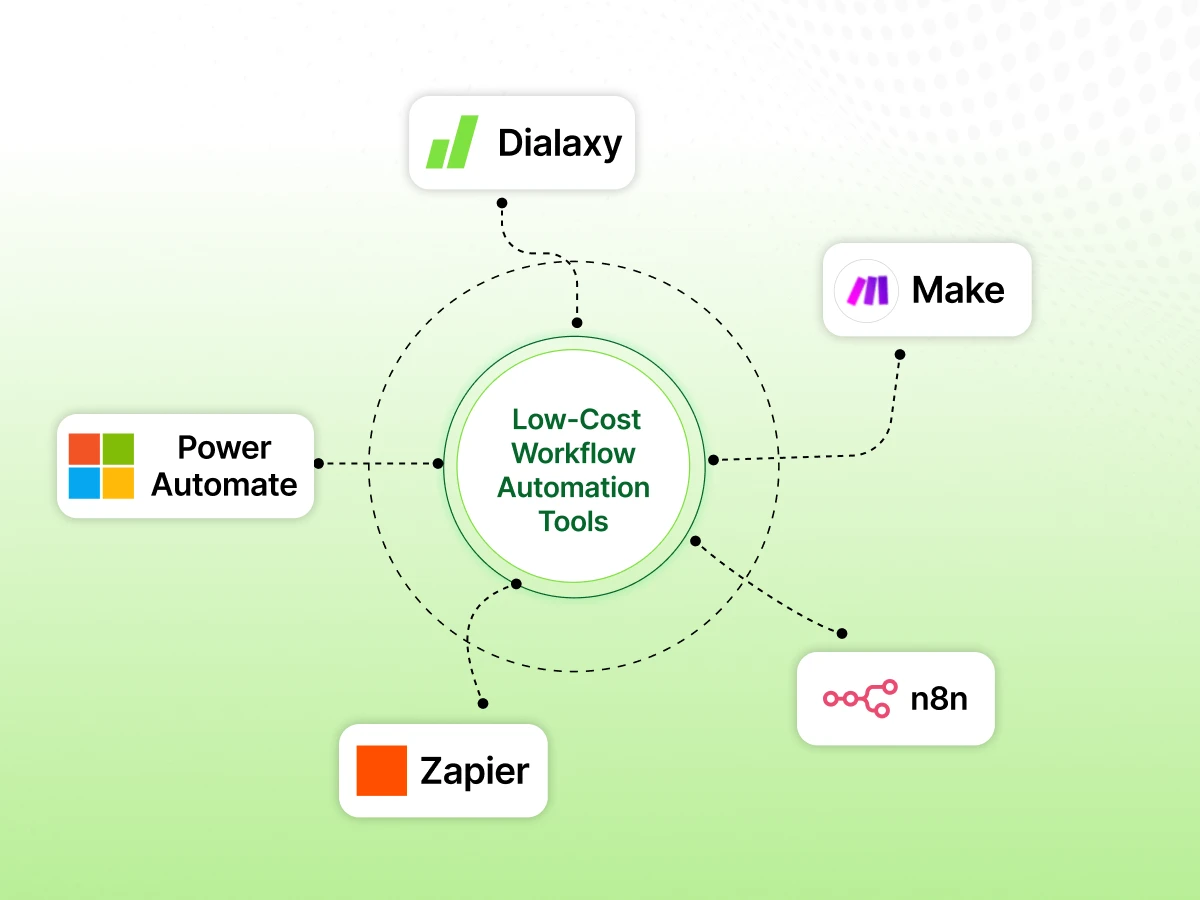
This guide compares 5 low-cost workflow automation tools: Dialaxy, Zapier, Make, n8n, and Microsoft Power Automate. We look at cost, usability, and workflow complexity. Our goal is to help you find an affordable business automation tool that actually saves you money.
Choosing the right platform depends on your technical expertise and your budget. The following table provides a snapshot of how these tools compare.
| Tool | Best for | Pricing Model | Ease of Use | Integrations |
|---|---|---|---|---|
| Dialaxy | Communication workflows | Subscription, starts at $15/month/user | High (User-friendly) | CRM & Zapier |
| Zapier | Simple no-code tasks | Per task/action | Very High | 9,000+ apps |
| Make | Visual complex workflows | Credit-based | Medium | 3,000+ apps |
| n8n | Technical/Self-hosting | Per execution | Low (Technical) | 1000+ apps/services |
| Power Automate | Microsoft users | User/capacity-based | Medium | MS Ecosystem |
Workflow automation is a way to make software handle routine tasks for you. It usually follows a simple logic to automate processes: “If this happens, then do that.” This is often called a trigger-and-action model. For example, if a customer fills out a form (trigger), then the software sends them a welcome email (action).
Small businesses need this to stay competitive. It reduces repetitive manual work and speeds up response times. Instead of a person moving data from a spreadsheet to a CRM, the software does it instantly. This keeps information consistent across all systems. It can help small teams handle more routine work without increasing manual effort at the same rate.
Automation turns a manual business process into a reliable, automated business process. Good workflow tools create a system that works even when you are not at your desk.
Not all automation tools are the same. You must evaluate them based on your specific needs and your team’s skills.
Look beyond the starting price. Some “free” plans are very restrictive. You might hit your task limit in three days. Check the cost of “overages” or what happens when you need more tasks. If you’re using it for low volume, then usage-based is a good option.
Don’t select a model just for price, but rather compare the price with the workflow you are expecting, number of users, and features you need.
Think about who will create the workflows. Do you have technical teams or only non-technical users? Workflow creation can be easier for beginners using a visual, no-code or low-code interface.
Some tools have a steep learning curve and require understanding logic or basic coding. If you’re looking to get beginners up and running fast, select a tool that has an intuitive interface.
If it doesn’t communicate with your current apps, then it doesn’t help you at all. Look for integration with your CRM, email service, and accounting software. Be careful not to only consider the integrations. Look at the depth. Does the tool only provide a new lead, or can it edit an existing record?
Some platforms will enable you to build workflows for simple tasks; others will allow you to build custom workflows and more advanced branching. Conditional logic allows you to set up “paths”, such as: If the lead is from the UK, then route to Sales Team A; otherwise, route to Sales Team B.
For advanced workflows, branching and filtering are required, with automation logic set up to specify the rules for each branch.
Your needs will change as you grow. A tool that works for five workflows might become too expensive for fifty, so make sure the platform can handle entire workflows as your operations expand, not just isolated tasks.
Consider the resource usage and whether the platform can handle more complex tasks later. You want a tool that supports your expected workflow volume as the business grows.
Here is a detailed breakdown of the best workflow automation tools and other leading automation tools in 2026. Some of these are also AI workflow automation tools, while still being a practical fit for small businesses.
Dialaxy is a business communication platform that can support communication-related workflows through CRM and Zapier integrations. It is excellent for sales and support teams. It focuses on connecting your phone system with your CRM.
What it does: Dialaxy automates communication-related workflows. It supports contact synchronization and provides call history, while its CRM integrations can connect communication activity with customer records.
It also supports call routing and agent groups for distributing communications across teams. It provides real-time notifications for missed calls or texts through a desktop agent.
Key features:
Pricing: Dialaxy uses a subscription model. Pricing depends on the plan you choose and the number of users. The starting price is $15/user/month.
Best use cases: Dialaxy can connect communication with CRM, helping teams access customer records and interaction history from a unified workplace.
| Pros | Cons |
|---|---|
| Strong CRM and communication focus | Not for general non-comm tasks |
| Reduces manual data entry for calls | Requires other tools for full automation |
| Easy to set up for sales teams | Limited to communication triggers |
Best for: Small businesses that want to automate their sales and support communication.
Verdict: If your business lives on the phone and in the CRM, Dialaxy is a strong fit.
Zapier is the most famous name in no-code automation. It is designed for anyone to use, regardless of technical expertise.
What it does: It connects over 9,000+ different apps. You create “Zaps” that consist of a trigger and one or more actions.
Key features:
Pricing: Zapier’s current pricing uses task tiers, and its current free plan has 100 tasks/month.
Best use cases: Automatically saving email attachments to Google Drive or posting new Shopify orders to a Slack channel.
| Pros | Cons |
|---|---|
| Easiest tool to learn | Costs can become significantly higher with increasing workflow volumes |
| Supports almost every business app | Limited advanced logic on lower plans |
| Great for non-technical users | Task-based billing adds up fast |
Best for: Beginners who need to connect popular apps quickly.
Verdict: Zapier is the gold standard for ease of use, but watch your budget as you scale.
Make (formerly Integromat) offers a visual way to design workflows. It provides a visual builder and supports more complex branching and data-processing workflows.
What it does: You build “scenarios” using a visual drag-and-drop interface. You can see the data flow between modules in real-time.
Key features:
Pricing: Make uses a credit-based system. Most standard module actions in a workflow cost one credit. Their free plan gives you 1,000 credits per month. Its credit-based model can be attractive for some multi-step workflows, but the actual cost depends on how many operations your scenarios perform.
Best use cases: Syncing complex data between an online store and an accounting system with multiple filters.
| Pros | Cons |
|---|---|
| Very powerful visual builder | Steeper learning curve than Zapier |
| Affordable for complex steps | Credit system can be confusing |
| High degree of customization | Requires more testing |
Best for: Users who need complex workflows and visual maps of their processes.
Verdict: Make is a strong option for businesses that need visual, multi-step workflows and more control over workflow logic.
n8n is a workflow automation platform that gives you incredible flexibility. It is popular with technical teams who want to control their own data.
What it does: It allows you to build workflows using nodes. You can host it yourself or use their cloud service. It also works well as an AI workflow automation platform for technical teams that want more control.
Key features:
Pricing: n8n offers a self-hosted Community Edition, while its paid self-hosted and Cloud offerings have different licensing and pricing.
Best use cases: Large data migrations or workflows that require custom coding and high security.
| Pros | Cons |
|---|---|
| Comparatively low cost if self-hosted | Requires technical expertise |
| No limit on steps per execution | You must manage your own server |
| Greater control over deployment and data infrastructure | Not beginner-friendly |
Best for: Technical users or businesses with strict data privacy needs.
Verdict: If you have a developer or technical skills, n8n can be cost-effective for technically capable teams whose workflows benefit from execution-based pricing or self-hosting.
If your business runs on Outlook, Excel, and Teams, Power Automate is a natural option to consider.
What it does: It automates processes within the Microsoft ecosystem and beyond, and now sits among AI workflow automation options for Microsoft-heavy businesses. It includes cloud flows and desktop flows (RPA).
Key features:
Pricing: Some Microsoft 365 licenses include limited Power Automate capabilities, while premium connectors and other advanced capabilities require the appropriate Power Automate licensing. You can get a paid plan for around $15/user/month when paid yearly.
Best use cases: Automating approval workflows in Teams or extracting data from PDF invoices.
| Pros | Cons |
|---|---|
| Best for Microsoft environments | Interface can be clunky |
| Includes desktop automation (RPA) | Licensing is very confusing |
| Strong fit for businesses already invested in Microsoft 365 | Steeper learning curve for advanced workflows |
Best for: Businesses already using the Microsoft 365 tech stack.
Verdict: It is the powerhouse for Windows-based businesses but has a higher learning curve.
How do these tools work in the real world? Here are some concrete examples of automated workflows.
Manual process: You get a website inquiry and manually type it into your CRM.
Automated workflow: A new form submission creates a CRM record and notifies the sales team.
Benefit: You respond to leads faster and never lose a contact.
Manual process: You try to remember to email a client two days after a call.
Automated workflow: A provider like Dialaxy logs a completed call, which triggers a follow-up email through your CRM.
Benefit: Every customer gets a follow-up without you thinking about it.
Manual process: You manually change a Lead from “Inquiry” to “Qualified.
Automated workflow: When you mark a task as done in your project management tool, the CRM status updates.
Benefit: Your sales pipeline remains up-to-date at all times.
Manual process: When a customer pays an invoice, you send out a Slack message.
Accounting software: Your accounting software identifies a payment and sends a message to the payment channel.
Benefit: The finance and relevant teams receive the update without someone sending a manual message.
Automation costs are more than just the monthly subscription. You must consider three main models.
Total cost = subscription + usage overages + maintenance time.
Don’t try to automate your entire business in one day. Follow this simple framework to succeed.
1. Identify Repetitive Tasks: Look for tedious tasks that you do every day and that follow clear rules. Data entry and sending notifications are great starting points.
2. Choose the Right Tool: Match the tool to your skills. If you are not a “tech person,” start with Zapier. If you like visual maps, try Make. If you are a Microsoft Power user, stay in their ecosystem. For advanced business communication, look at Dialaxy.
3. Connect Your Business Apps: You will need to give the automation tool access to your accounts. Most integrations use OAuth or other methods so you can connect accounts without giving the automation platform your account password directly. Check the access controls and data protection settings.
4. Build and Test Your First Workflow: Start by creating workflows with a simple one-step process. Test it with “test” data to ensure it works. Check for human error in the setup. Once it works, turn it on.
5. Monitor and Improve: After launch, monitor tasks through logs and alerts. Look for failed runs. Sometimes an app updates its API, and your workflow might break. Set up automated notifications for when a workflow fails so you can fix it quickly.
Choosing among the best AI workflow options still depends on what you value most.
| Business need | Recommended tool |
|---|---|
| Communication and CRM workflows | Dialaxy |
| Visual multi-step workflows | Make |
| Technical/self-hosted workflows | n8n |
| Microsoft 365 workflows | Power Automate |
| Simple no-code automation | Zapier |
Choosing an automation platform is a major step for your business, as these workflow tools can support marketing teams, project managers, and human resources alongside broader workplace productivity.
It moves you away from manual tasks and toward workplace productivity. Do not just look at the cheapest headline price. Think about the total cost of ownership.
Check if the tool integrates with your existing tech stack. Start with one simple, repetitive task to prove the value. Once you see the time savings, you can expand to more advanced workflows.
Dialaxy helps small businesses streamline calls, SMS, and customer communication.
The cheapest tool depends on your usage. n8n can be affordable if you self-host it. Make’s credit-based model can be cost-effective for some multi-step workflows. Dialaxy can be a safer option if you want smooth business communication and CRM-integrated workflows.
There is no single winner. The best choice depends on the business process you want to automate. Zapier is best for ease of use. Make is best for visual complexity. Power Automate is best for Microsoft users. Dialaxy is best for communication and CRM-connected workflows.
Yes. Tools like Zapier and Make are designed for non-technical users. They use a drag-and-drop interface so you can build workflows without writing any code.
Start with high-volume, low-risk tasks. Good examples include lead capture, CRM data entry, forms that capture data, and internal team notifications for new orders or inquiries.
Free plans are usually good for testing. However, most small businesses will outgrow free limits quickly. Expect to move to a paid plan as you add more workflows.
Costs vary from $15 per month to hundreds of dollars. It depends on your subscription, the number of users, and how many tasks you automate each month.
Yes. Even a basic automation can save 5-10 hours of manual work every week. The reduction in human error and the increase in speed usually justify the cost.
