

How to Make a Conference Call on Android Devices?

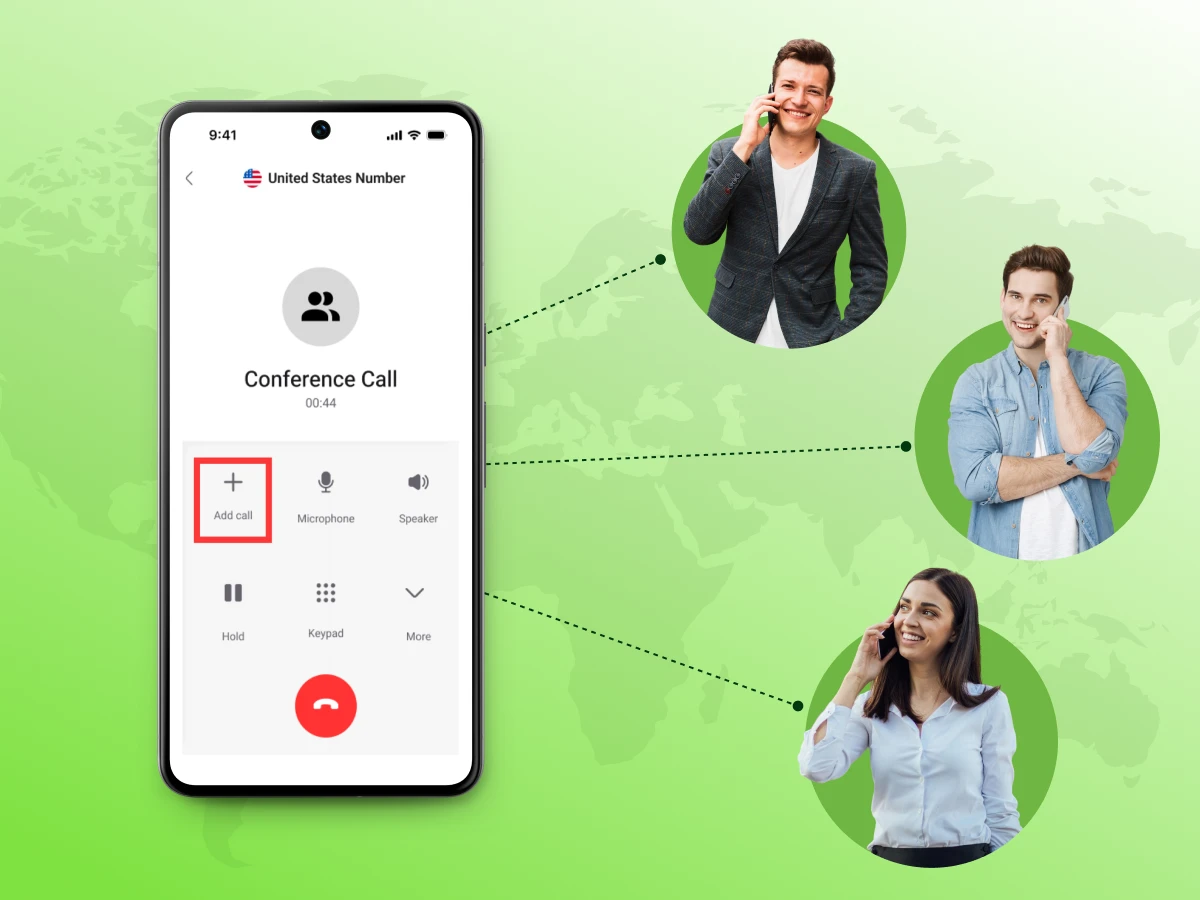
Do you need to reach several people without wasting time on multiple calls? Are you curious how Android phones make group calling easy?
A conference call on Android devices allows multiple participants to join a single conversation. It reduces call confusion and saves time. When everybody is on the same line, calls are easier to handle.
It is effective in both professional and personal communication. Participants can speak freely while staying coordinated. It’s a simple method for group discussions.
In this blog, we will show you step by step how to start and manage conference calls on Android devices.
A conference call is a phone call involving three or more people, conducted simultaneously on a single line. It lets more than one caller talk and listen to one another without the need to have a separate chat. The method is time-saving and will ensure that everything is on track. It resembles a face-to-face meeting except that it is over the phone.
The built-in dialer of most Android phones has a certain limitation. The number of participants you can add to a session is usually five or six. This number depends mostly on what your mobile carrier allows. Some networks might restrict you to fewer people during peak hours. This limit will help you schedule your meetings.
The two primary ways of hosting a conference call on Android are:
Prior planning for an Android phone conference call can save time and avoid interruptions. Unplanned dropped calls or audio issues can be prevented with proper planning.
The following are the primary things to consider before initiating a call.
Make sure your Android phone supports multiple participants in a call. Older mobile devices might not support more than 3-way calls. Your carrier plan should be checked to make sure how many people you can be connected. Updating your Android devices can improve call stability. Knowing the limits helps you avoid call drop issues. This makes your Android conference calling trouble-free.
A weak signal can drop your mobile device calls. Use Wi-Fi if possible for VoIP (Voice over Internet Protocol) or video calls. Check your data connection for consistency. Poor internet can affect sound quality. Avoid areas with interference or background noise. Position yourself in a spot with good coverage. A strong connection makes conference calling more reliable.
Save all participants in your phone app to avoid dialing mistakes. Verify their caller ID displays correctly to identify who is on the call. Check that numbers are current and formatted properly. Group contacts if possible for quick access. Having contacts ready saves time when starting the call. This prevents delays during conference calling on Android.
A headset improves the sound quality of cell phones. It reduces noise in the course of making calls, including background noise and echo. Check that your microphone is not faulty before starting the call. Adjust the volume so all participants can hear clearly. Headphones help in long meetings to reduce strain. Using them makes conference calling on Android more professional.
Android conference calling is not as complex as some may assume. With the correct steps, it is possible to reach a number of participants in a short period of time.
The following are just a few steps that will help you in the process:
Step 1: Dial the First Participant
Open the phone app and call the first participant. Wait for them to answer before moving to the next step.
Step 2: Place the First Call on Hold
Tap the “Add call” button to put the first call on hold. This keeps the first participant connected on hold while you call the next person.
Step 3: Dial the Second Participant
Use the dialer to call the second person. Wait for them to answer before merging the calls.
Step 4: Merge the Calls
Tap the “Merge” icon to connect both participants. They are now part of the same conversation.
Step 5: Add More Participants
Repeat the hold, dial, and merge steps (repeat steps) for additional participants. Continue until you reach your carrier’s limit.
And when your conference call is finished, simply hang up as you would on a normal call. That’s it!
Using apps can make a conference call on Android more flexible. These tools usually introduce features that a basic phone system might not support.
Below are the top apps for hosting a conference call on Android.
Google Meet is a safe alternative for audio as well as video conferencing. It supports every mobile device with a stable internet connection. You can attend meetings with just a single connection. The app also allows screen sharing during calls. This helps when you need to present something. It fits well for teams and schools. It supports modern business communication needs.
For fast group video calls and voice calls, WhatsApp is easy to use. It has already been installed on most mobile phones. You can make a call right out of your contacts list. It supports small group conversations. The app uses the internet instead of a traditional phone system. This helps reduce call costs for long-distance calls. It is great for personal and small group use. It keeps communication simple and direct.
Zoom is known for hosting large meetings and smooth video conference sessions. It works well on most mobile devices. You can schedule meetings in advance for your team. It supports many participants at once. The app has chat and file transfer features. Teams and educators frequently use it. Many customer stories highlight its ease of use. It helps handle both small and big meetings.
Telegram provides group voice chat and can support large audiences. It is compatible with an Android phone. You can create channels and group calls with ease. It focuses on speed and privacy for all users. The app works well even on slower networks. It is useful for communities and professional groups. Some contact centers use it for quick updates. It keeps conversations organized and secure.
Microsoft Teams is built for work and team collaboration. It supports both calls and video calls in one place. You can manage meetings and chats together. It integrates with work tools and files. The app works well for remote teams. It includes built-in conference call features for easy setup. It helps improve team coordination. This can support business growth.
Communication Fundamentals
Oct 14, 2025
Read More
Communication Fundamentals
Mar 3, 2026
Read More
Sometimes a group call does not go as planned due to technical glitches. Most of these problems are easy to fix with the right steps.
Here are common problems and how you can solve them:
You may find that the add an additional person option is not available. The merge button may sometimes fail to react or remain inactive.
Solution:
Hearing an echo or static can make phone calls very frustrating for everyone. This usually happens because of a weak signal or a device issue.
Solution:
Calls may end suddenly without warning. This usually happens due to unstable network connections.
Solution:
An app might freeze or close while you are in a meeting. This may cut off your conversation and disconnect the participants.
Solution:
You might find that people cannot hear your voice clearly. Other times, you may struggle to hear what your team is saying. This can affect the flow of the call.
Solution:
Your group conversations can become a lot more professional with a few basic practices. A slight change can bring significant improvement to all parties involved.
The following are the most effective measures to enhance your next conference call.
Using headphones can improve call clarity on an Android device. It helps reduce echo and outside noise. This ensures that you are heard by others easily. You can also use it to focus on the conversation. Headsets are useful for long calls. They make your voice sound clearer.
Headphones also help with better call handling during group calls. You can hear each participant without confusion. This reduces the need to repeat things. It keeps the conversation smooth. It also helps avoid feedback noise. This improves overall call quality.
Muting helps reduce background noise during an Android conference call. It keeps the conversation clean and clear. This is useful when many people are on the call. It prevents interruptions. It also helps maintain order. Everyone gets an opportunity to speak.
When using apps, you can mute other people or even use Android’s built-in conference call features. This helps control noise from different environments. It keeps the discussion focused. It also improves listening for all users. Muting is a simple but powerful tool. It helps create better customer experiences during calls.
A strong connection is key for any call on your Android. A poor signal can break the conversation. It may cause delays or dropped calls. Always check your network before starting. Use Wi-Fi when available. It gives more stable performance.
Stable internet also helps when you tap Add Call or manage multiple users. It ensures each step works without delay. This is important for smooth call flow. It also reduces errors when adding participants. A good connection supports better call quality. It helps avoid technical issues.
Testing your audio helps avoid problems during the call. It ensures your voice is clear to others. Check both the microphone and speakers before you begin. This is useful for both apps and dialer calls. It saves time during the meeting. It prevents confusion.
A good audio setup supports smooth merge calls without issues. It helps all users hear each other clearly. This is important for team discussions. It also improves communication flow. Many users check guides in a resource center for setup help. This step ensures your call runs without trouble.
Planning your call helps avoid delays and confusion. Set a clear time and inform all participants. This ensures everyone joins on time. It also helps you prepare discussion points. A planned call runs more smoothly. It keeps things organized.
Preparation is important when using a business phone system or managing large calls. It helps with better coordination. It also supports clear communication goals. Some teams align calls with updates like investor relations or reports. Others may compare tools like a conference call on an iPhone before choosing one. Proper planning improves overall call success.
Android conference calling facilitates easy and effective interaction with multiple people. It saves time and aligns everybody on the same page, both work and personal. The built-in dialer can be used to make calling easy or to use popular apps. Participants are easy to add, and the conversation can be easily managed with a few taps. Planning in advance enhances the call quality and the call flow. Such small things as a headset can help a lot with clarity.
Your Android conference calling can be both smooth and reliable with the proper setup. Before you begin, check your connection and test the audio to avoid some common problems. Apps provide features such as video calls and screen sharing to enhance collaboration. Call managing and call scheduling ensure that your conversations are productive and focused. These steps will guarantee professional and clear communication at all times. Conference call is a convenient thing in your everyday routine.
Ready to experience better group communication today? Upgrade Dialaxy to manage conference call and keep everyone connected.
Most Android mobile phones support 5–6 participants on the built-in dialer. Apps like Zoom or Google Meet allow more people. It depends on your device and service limits.
Yes, you can use your carrier’s network to make a call. This does not need Wi-Fi. You just need enough coverage to connect.
You may need to tap the merge button during the call. Some carriers limit the number of participants. Updating your device or plan may fix the issue.
Popular apps include Google Meet, WhatsApp, Zoom, and Teams. They offer video, audio, and conversational intelligence features. For businesses, consider using an app like Dialaxy, built for professional use that supports advanced customer engagement.
Using the built-in dialer may be included in your plan. Some apps require a subscription or internet data. Always check if a credit card is needed for premium features or larger meetings.
