

Not Receiving a 2FA Verification Code? Try These Fixes

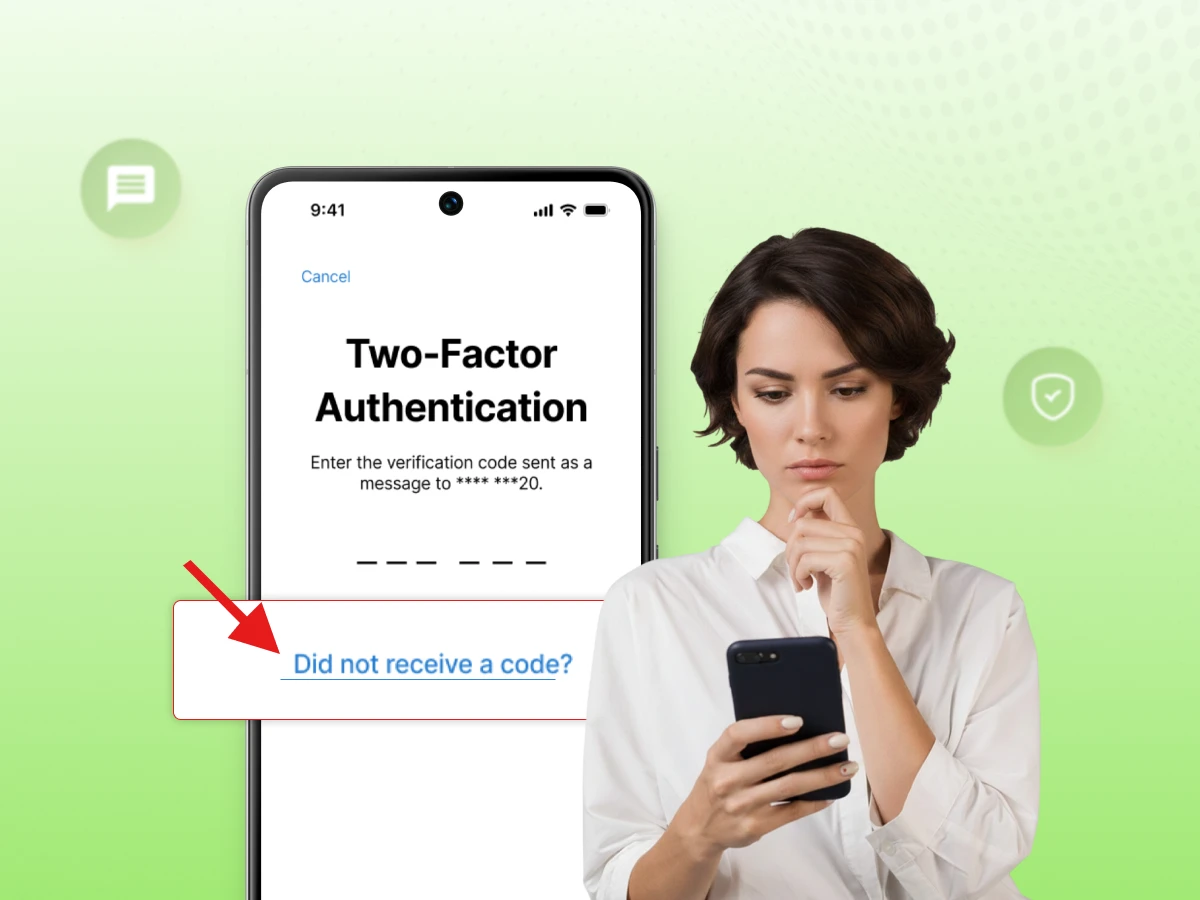
You enter your password, and you wait for a 2FA verification code; a temporary code used as a second factor to confirm your identity and protect your online accounts after your password.
But the 2FA verification code never arrives. The problem could be your phone, email, network, notification settings, authenticator app, carrier, VoIP number, or the service itself.
If you’re trying to figure out why a code is missing and want a fast fix, this blog explains how 2FA verification codes work, why SMS, email, app-based codes, and approval notifications fail, and what to do next.
Follow these proven steps to secure your accounts today.
A 2FA verification code is a temporary code used as a second factor for authentication to confirm your identity after you enter a password. Enabling two-factor authentication 2FA can enhance account security.
It adds an extra step after your password, adding a layer of security. Depending on the method, the code may be delivered by SMS or generated by an authenticator app. Further, 2FA helps stop account takeovers caused by stolen data and adds an extra layer of protection for personal and financial information.
Two-factor verification 2FA adds another verification step after you sign in with your username and password from a computer or mobile device. You enter that code to prove your identity and finish the authentication process before you can access your account.
OTP code is a one-time password used once. 2FA means two-factor authentication, i.e., you use two factors to log in. MFA involves multi-factor authentication, i.e., using two or more factors to protect personal and financial information.
You might have an old phone number on your profile. Check if you typed the email account correctly. A small typo prevents the system from sending your security code to the right place.
Mobile carriers sometimes block a text message from automated systems. Weak signals, carrier filtering, service-side delivery problems, or network congestion also delay these alerts.
Check your spam folder for the missing message. Filters often move these alerts away from your main inbox. Ensure your storage is not full so new mail can arrive safely.
Most modern apps need the internet to verify your login attempt. A weak Wi-Fi signal can stop a push notification. Switch to cellular data if your local network feels slow or unstable.
Requesting a code too many times triggers a rate limit. The system may think hackers are trying to gain access, and repeated attempts can resemble credential stuffing attacks that Two-Factor Authentication (2FA) helps mitigate.
Stop requesting new codes repeatedly. Wait for the service’s retry timer or cooldown period before trying again.
The service may be using another available verification method, such as a push notification, passkey, security key, or trusted-device prompt. Check the sign-in screen and your registered devices.
Do Not Disturb, Focus mode, or disabled app notifications can prevent you from seeing authentication prompts. Check if you turned off alerts for your authenticator app. Proper settings ensure you see every security alert on your phone.
SMS is a common method that works on almost every phone without extra hardware. SMS verification sends a temporary code to your mobile phone through your carrier’s network. It remains one of the popular choices because it is very user-friendly.
This is an extra layer but not the strongest one. It depends on your email provider and delivery speed. We strongly recommend a more secure method for sensitive financial information.
Apps like Google Authenticator or Microsoft Authenticator generate codes locally on your device after you download the app, and the short-lived codes regenerate periodically. This method works offline because it does not need a signal, making it a secure and reliable choice.
You receive a prompt on your screen and tap “Approve”. This usually requires a quick setup first, plus an active data connection to the server, so push approvals work reliably. It offers a fast way to verify your identity on trusted devices.
Passkeys are a simple and secure alternative to passwords for account security. They protect against social engineering techniques. Hardware tokens are common in enterprise environments to stop data breaches and protect your personal and financial information.
Yes, but it depends on the service provider. Some platforms block virtual numbers to prevent fraud. Always check if the site accepts a VoIP phone number for your two-step verification.
Some services restrict virtual numbers for authentication. This helps protect your personal data and identity. Some also block them because virtual numbers may be easy to obtain or reuse to create fake accounts, making them less reliable as proof of a user’s identity.
Every company has its own security rules and verification provider. One service may allow a VoIP number by default for convenience, while another blocks it under stricter security rules. They choose different ways to protect user accounts.
If the service offers another verification method, such as an authenticator app, backup codes, a security key, or an approved recovery method, use that instead. Contact support if you remain locked out of your secure profile.
No, because these apps do not use your phone line. The authenticator app creates a code using a secret key and time. This process is independent of your mobile carrier service.
If you’re in need of a separate virtual phone number for your business communications, Dialaxy provides virtual numbers that you can manage online.
If your text never arrives, first verify your phone number and country code. Then check your signal or send a test text. Carrier filtering or delivery issues can prevent automated verification messages. Stop clicking resend too fast. If the issue remains, try using an app or a backup recovery code instead.
How to Fix (Troubleshooting Steps):
Step 1: Confirm your phone number and country code.
Step 2: Check your cellular signal.
Step 3: Test normal SMS reception with a friend.
Step 4: Check blocked or filtered message folders.
Step 5: Avoid repeated code requests.
Step 6: Try another available authentication method.
Contact the service if only its codes fail to arrive.
Check your spam or junk folder if the email is missing. Search your inbox for “security” or “verification.” Ensure you linked the correct address and that your storage is not full. Follow the service’s retry timer or instructions before requesting another code. Sometimes, mail filters can move verification messages to spam, junk, or another folder.
Troubleshooting Steps:
Step 1: Check spam and junk folders.
Step 2: Search the mailbox for the service or code-related terms.
Step 3: Confirm the registered email address.
Step 4: Check mailbox storage limits.
Step 5: Check email filters if messages are consistently missing.
Step 6: Avoid repeated requests in a short time.
Step 7: Try another authentication method if available.
Authenticator apps generate one-time passwords (OTPs) locally using your device clock or a shared secret. If the code fails, check if your time and date are set to automatic. Ensure you moved the accounts to your replacement device correctly. If you switched to a new phone, ensure you moved the accounts to your replacement device correctly.
Troubleshooting Steps:
Step 1: Check automatic date and time settings.
Step 2: Confirm the correct account entry in the app.
Step 3: Check whether the code is being rejected or not displayed.
Step 4: Consider if you recently changed phones.
Step 5: Confirm the authenticator account was transferred correctly.
Step 6: Update the authenticator app to the latest version.
Step 7: Use backup codes or another recovery method if available.
Push notifications generally require an internet connection and active app permissions. Check if Do Not Disturb mode is on. Battery optimization or background restrictions can block background alerts. If you recently upgraded your phone, the request might still go to your old device. Ensure your app is fully updated.
Troubleshooting Steps:
Step 1: Check app notification permissions.
Step 2: Check Do Not Disturb or Focus mode.
Step 3: Confirm Wi-Fi or mobile data is working.
Step 4: Check battery optimization and background restrictions.
Step 5: Update the authenticator app.
Step 6: Check whether the request is going to an old device.
Step 7: Try another authentication method if available.
A verification code may be rejected because it has expired, was entered incorrectly, is no longer the valid code for the current login attempt, or because you did not complete that login attempt before requesting another code. Some services invalidate codes when you request a new one.
Troubleshooting Steps:
Step 1: Verify if the code is the most recent one requested.
Step 2: Check for expiration countdowns.
Step 3: Make sure the time settings on the device match the server.
Step 4: Restart the login process from the beginning.
Step 5: Try an alternative authentication channel.
Most codes are usually valid for a limited period. If you are too slow, the code becomes useless. Request a new one, and enter it immediately. Avoid spamming the request button. This can trigger security blocks, and some services may make earlier codes invalid.
Troubleshooting Steps:
Step 1: Request a fresh verification code.
Step 2: Enter the code as soon as it arrives.
Step 3: Avoid multiple requests in short bursts.
Step 4: Check if device time settings cause false expiration.
Step 5: Use the newest code in your inbox or app.
Contact your provider if you lose your phone or change your number. Contact them if your backup codes do not work. They can explain the provider’s available account-recovery options and any identity checks to regain access.
Give them your username and the date of your last login attempt. Do not share your password. Follow the provider’s official recovery process and provide only the information it specifically requests through its secure support or recovery channels.
Set up an app and a phone number for your profile. This gives you a backup if one factor fails. It is an easy way to stay secure online.
Store your recovery codes in a secure location. Do not save them on your main device. These codes help you regain access during an emergency.
Update your profile whenever you get a new device or change carriers. Old information creates a weak link. Keep everything fresh to avoid future login problems and secure data.
Software updates include fixes for security holes and bugs. A single app with the latest patch works better. Keep your Google Authenticator app and operating system updated so you receive relevant security fixes and bug fixes.
This ensures your TOTP codes stay in sync with the server. Even a small difference can make your code invalid. Let your phone handle the clock automatically to stay secure.
Check which tablets or phones have access to your accounts. Remove any device you no longer own. This narrows the field and keeps your personal information much safer.
Be patient after you click the button for a code. Multiple requests confuse the server and block your access. Wait for the server to finish the current process first.
When supported, consider passkeys or security keys because they can provide phishing-resistant authentication. These physical devices are much harder for thieves to bypass. They offer an additional layer of safety for your user accounts.
Managing your security should not be a struggle. Missing 2FA verification codes are a common hurdle today. You now have the tools to troubleshoot SMS, email, and app issues.
We strongly recommend setting up multiple factors to protect your financial information. Stay proactive and update your recovery settings today.
Secure your user accounts and keep your data safe from data breaches. A small effort now saves you from a big headache later.
You may not receive a 2FA verification code due to network issues, settings problems, or other issues. Your carrier might filter the message. Check your spam folder or try a different method to verify your identity.
You can receive a 2FA verification code via text message or email. You can also use an authenticator app to generate one. The available method depends on the service or your account setup.
Some services restrict or reject VoIP and virtual numbers, while others accept them. Companies may do this to help prevent fraud. Check your account settings to see if your number is supported.
Follow the service’s retry timer or instructions before requesting another code. Requesting codes too quickly can trigger a rate limit. Give the network enough time to deliver your security code.
SMS 2FA sends a verification code over the mobile network, while an authenticator app generates a time-based code locally. Authenticator apps are usually more secure once you complete the initial setup and avoid some risks associated with SMS delivery.
If your mobile device is lost or stolen, use your saved backup codes to log in. You can also try account recovery through the provider. Always set up a secondary authentication method to avoid being locked out, and do not delete the authenticator from your old device unless you have another recovery method.
Contact the customer support team for help and use the provider’s official account recovery process. Depending on the service, you may need to verify account ownership through the available recovery methods.
Switching SIM cards or mobile carriers can affect authentication because services may treat SIM changes, device swaps, or number porting as security risk signals. If codes stop working after a change, use another registered authentication method or follow the provider’s account recovery process.
