

How to set up anonymous call rejection on different devices?

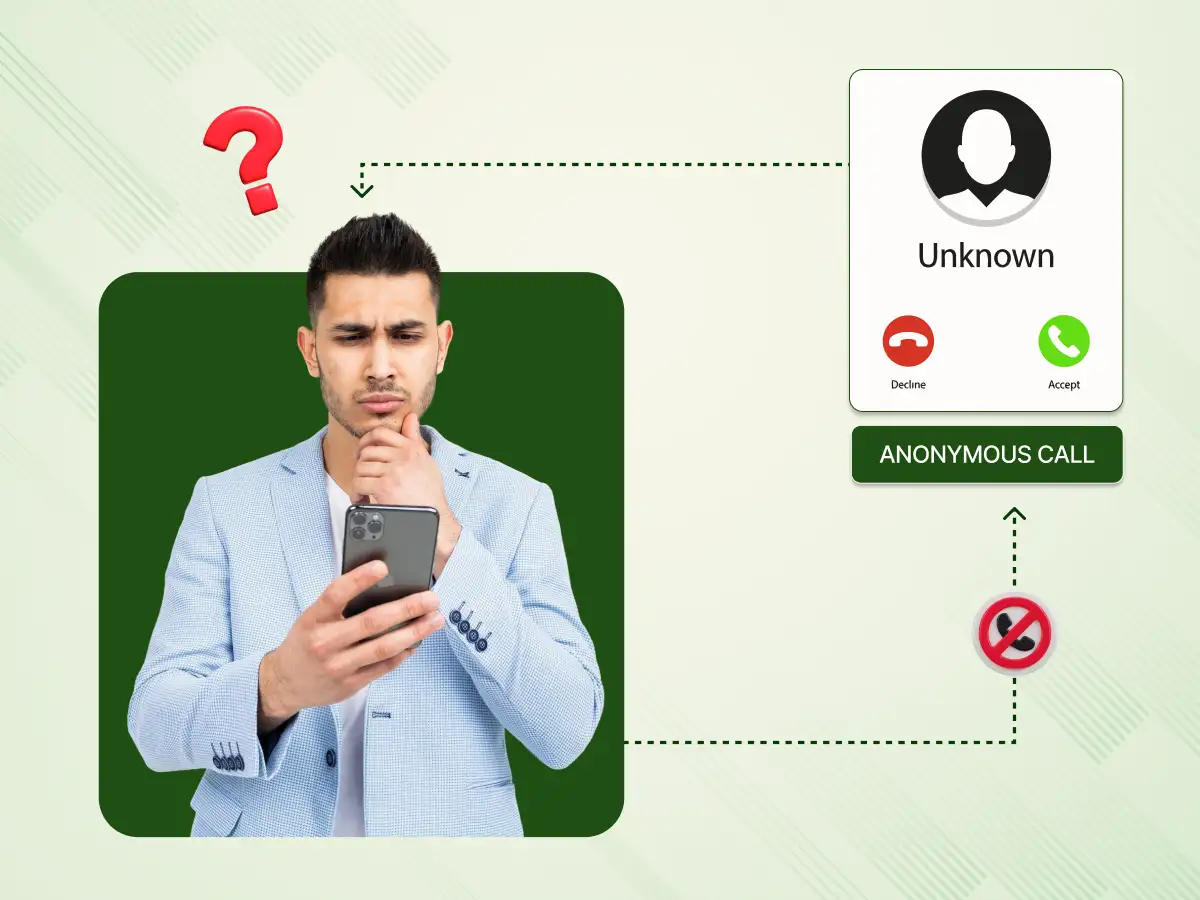
Imagine you’re in the middle of an important work call, and suddenly an unknown number interrupts with silence. Frustrating, right?
With private number rejection, you can block these mysterious calls effortlessly and focus on what truly matters.
In this guide, we’ll show you how to set up anonymous call rejection on different devices, so interruptions become a thing of the past.
Anonymous Call Rejection is a phone feature that blocks incoming calls from people hiding their numbers. It works for users with Caller ID service and automatically rejects calls marked as private or blocked. When the call rejection feature is active, private callers hear a distinct message. The message says the number does not accept anonymous call attempts.
To make another attempt, the caller must unblock their caller ID. Regular calls will then go through without any issues. This useful feature helps to prevent many unsolicited scam calls. It stops telemarketers, spammers, and pranksters from remaining anonymous. Most carriers and every major telephone company offer this as a free calling feature with caller ID.
You can often activate it quickly by dialing a code like *77. If you need to make a private call for legitimate reasons, the rejection feature can be turned off. You would dial *87 to turn it off temporarily. Overall, this excellent tool enhances your privacy. It significantly stops unwanted calls throughout your day.
Here are the following pros and cons of an anonymous call in a table:
| Pros of Anonymous Call Rejection | Cons of Anonymous Call Rejection |
|---|---|
| It greatly reduces interruptions from all telemarketers | It might block calls from legitimate users dialing from private lines |
| The feature is typically provided free by major phone carriers | A doctor or hospital may call from a blocked number in emergencies |
| It helps recover time and focus during work hours | Some international calls may appear as an anonymous call |
| It stops certain caller ID spoofing techniques | Setup steps differ across phones and carriers |
| It promotes stronger personal privacy | It does not stop visible but unlisted caller ID numbers |
| It gives full control over a business phone number | Blocked callers cannot leave voicemail messages |
Before activating your private call blocking feature, review these essential points. Understanding these details ensures the feature works as intended for your needs. This preparation will help you better stop unwanted calls while keeping important lines open.
Setting up private call rejection across your devices is essential. It is the best way to regain control of your phone line. Now we explore the practical steps for setup. The method depends heavily on the device you use.
You can either use the phone’s native settings. Alternatively, you can rely on the stronger network calling feature. These instructions will help you implement hidden caller filtering immediately.
Modern smartphones offer powerful integrated tools to manage communication. These settings allow users granular control over incoming calls. Utilizing the device’s native settings is often the simplest approach. This places the private call blocking control directly in your hands. It provides immediate feedback and control.
The iPhone uses a feature that achieves effective hidden caller ID blocking. This built-in tool is called Silence Unknown Callers. It sends calls from numbers not saved in your contacts straight to voicemail.
This prevents the anonymous call from ringing your phone at all. It is the device-level method for call rejection. Here’s how to set up on an iphone:
Once this is on, calls from numbers that are not in Contacts, Mail, or Messages do not ring. They go straight to voicemail and appear in the Recents list for review later. Normal calls with caller ID keep ringing as usual, so everyday conversations stay smooth.
Alternative path for carrier features:
Setting up hidden caller ID blocking on Android often uses similar logic. The exact path can vary based on the phone maker. Samsung and Google Pixel devices may use slightly different menu labels.
This process uses the built-in phone app for call rejection. Here’s how to set up on Android:
If you turn on this feature, calls that have a hidden or private caller ID will be automatically directed to voicemail without allowing your call to ring. Calls from numbers that are not saved in your contacts but are still identified (not private/unknown) will be allowed to go through.
This method is incredibly effective for full private call blocking. It is often preferred by technical users. It works at the network level, not just on your phone.
The carrier intercepts the anonymous call before it even reaches your device. This is a true rejection feature. It works on any device, including even the most basic flip phones. It is a fundamental calling feature offered by most providers. The steps below provide how to set up on different devices through your mobile carrier:
Verizon
Verizon uses an app called Call Filter for this purpose. This service helps manage both spam and private numbers. It enhances your existing call rejection abilities significantly and shows you how to block spam calls effectively. Here’s how to set up using the Verizon app:
AT&T
AT&T offers powerful tools through its official application. These tools are designed to filter out unwanted calls. They provide strong private caller blocking capabilities. Here’s how to set up using the AT&T app:
T-Mobile
T-Mobile uses its comprehensive Scam Shield service. This tool is very effective at providing private call blocking. It manages both known scams and private numbers. Here’s how to set up using T-Mobile Scam Shield:
General Instruction:
Use these steps for a quick network-level private call blocking setup on many carriers. This often works for a traditional landline as well. This method is the true network-level rejection feature. It helps to stop calls before they reach you.
Traditional landline phones handle anonymous call rejection through your carrier, mostly. The phone itself does not have fancy menus for this. Instead, you use simple dial codes that talk to the network.
This works on basic corded phones and even older rotary phones in some areas. It blocks anonymous call before the ring even starts at calls on your home. Here’s how to set up on a traditional landline:
From that moment, anonymous or private calls no longer ring through. Only calls that present a visible caller ID can reach you.
To turn it off later when you need a private call:
Troubleshooting & Support
Aug 10, 2025
Read More
Dealing with call settings can sometimes be tricky. If you encounter business phone issues with your private call rejection setup, here are solutions for common issues.
Solution: Your carrier may control this calling feature entirely. If you cannot find a “Block Private Numbers” toggle, the control is likely at the network level. Use the carrier methods in Section B to activate the service. This is very common for a network-based hidden caller ID blocking system.
Solution: The private caller filtering option blocks only calls without a visible caller ID. Spammers sometimes display fake numbers, leading to a phone number showing as spam to bypass filters. Use your phone’s built-in spam ID tools or pair this with a third-party blocker to stop calls more effectively. You can also register your line with the National Do Not Call Registry. Combining these methods helps reduce unwanted communication.
Solution: You can usually dial *87 for many carriers to turn private call blocking off. Remember to dial *77 to turn the calling feature back on later. This allows a legitimate anonymous call to reach you when needed.
Activating this useful calling feature is typically done through a quick code.
This step below enables the private call rejection service immediately on your line. This process works for many mobile phones and your traditional landline. Here are the following steps to turn on anonymous call rejection:
Disabling the service is just as simple as activating it quickly. This action immediately turns off the call rejection feature. You will then accept calls even when the caller ID is hidden. Here are the following steps to turn off anonymous call rejection:
This guide provided clear steps for setting up anonymous call rejection. You can easily implement this feature across devices. This includes your mobile phone and your traditional landline. The private call rejection feature is an effective first defense. It immediately reduces the number of unwanted anonymous calls, ensures your phone’s screen only shows important calls, and filters out unnecessary interruptions.
This powerful calling feature helps stop calls that hide their caller ID. Combine it with spam identification tools for the best protection. You can also register your number on the National Do Not Call Registry. Enable private call blocking on your primary device today. Enjoy fewer interruptions and greater peace of mind with this excellent hidden caller ID filtering feature.
This code activates the rejection feature on landlines. It stops private numbers from ringing your line.
Yes, this code hides your number. Your call will fail if the receiver uses private call rejection.
Yes, most digital voice and VoIP providers offer this option. You usually manage the rejection feature through an online account portal. Check your VoIP provider’s support pages for specific instructions.
No, it only blocks calls where the caller specifically hides their caller ID. It will not block calls from a non-saved number where the caller ID is still visible.
Yes, calls get blocked if the ID is hidden. Hospitals and police stations often use private lines.
Yes, the iPhone has a feature called Silence Unknown Callers. Go to Settings, then Phone, and enable the toggle for that feature. This is a powerful call rejection tool.
