

How to Turn off Call Forwarding On Any Device?

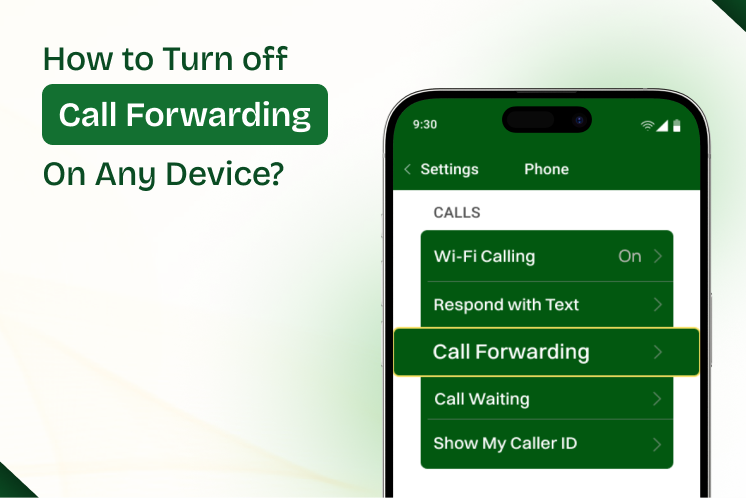
Call forwarding is convenient when you desire your calls to be directed to a different phone number, though it is not something you always need. When you continue to receive redirected calls and you do not want them, it can be frustrating at the same time. That is where the knowledge of how to switch off call forwarding on any device would help.
When you do not want your calls to get redirected, it can be annoying when this happens constantly. You may miss very crucial discussions or lose the feeling that your phone belongs to you. Switching it off puts you in control again.
This guide provides the simple steps to disable it on smartphones, landlines, and VoIP phones. You’ll also learn the dial codes, carrier options, and troubleshooting tips so you can get your calls back under your control. Spend 10 minutes here, and your calls will ring where they should, straight to you.
Before you start, it helps to have a few basics ready. Without them, you may run into small roadblocks. Think of this as your short prep list.
Once you have these in place, you’ll be ready to move ahead without interruptions.
Call forwarding refers to redirecting incoming calls from one telephone to another telephone number. This may be a mobile, home, or business line. It is prevalent on iPhones, Android, and VoIP phones, and even on home landlines.
There are several types of call forwarding:
The kind of call forwarding will enable you to know how to disable it.
Follow these quick, device-neutral steps to learn how to turn off call forwarding on any smartphone. These work on both iPhone and Android. Read one step. Do it. Then move to the next.
Start by unlocking your device and tapping either the Phone app or the Settings app. These are the two main places where call forwarding settings hide.
Scroll until you see something like Call Settings, Phone, or Call Forwarding. Every phone labels it differently, but don’t stress, if you can’t find it, simply use the search bar in settings.
Inside, you’ll see all the forwarding rules your phone may be using. Options usually include Always Forward, When Busy, When Unanswered, or When Unreachable. These are the common triggers that make calls get redirected.
Sometimes, your carrier hides forwarding settings, or your phone doesn’t show them at all. In that case, open your dialer and enter:
Press the call button after typing the code, and your phone should confirm that forwarding is disabled.
Once you’ve made changes, restart your device. Then grab another phone and call your number. If it rings directly on your phone instead of being diverted, congratulations, you’ve turned off call forwarding.
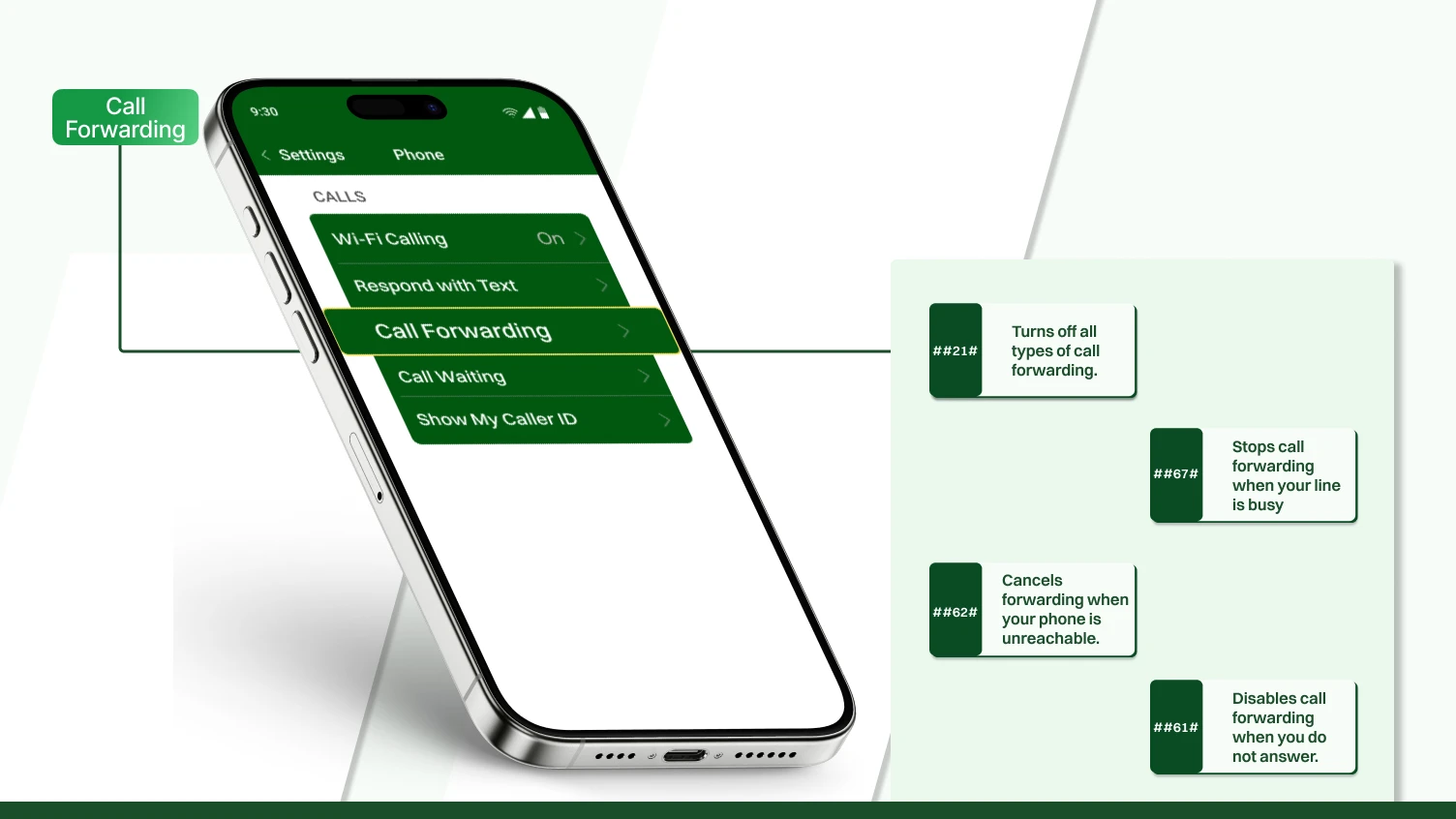
The call forwarding option is sometimes not available in your phone settings, or your carrier conceals the menu. You are also able to disable it in such instances using dial codes. These codes are compatible with iPhone, Android, and even some home phones. They are simple to operate and provide you with direct control over the management of your calls.
They are extremely easy to use, as one has to open the Phone app, input the code, and press the call button. In one or two seconds, you will see a confirmation message on the screen.
The most common ones are the following:
To verify the status of the existing type of call forwarding, dial #21# or to verify the status of a specified type of call forwarding, dial #62#. This will show the forwarding of calls and to what number. Once you know, you may disable it with the proper code.
Dial codes have a tendency to be quicker than searching in phone books. It also comes in handy when you change SIM cards, cross countries, or when you use a phone whose settings application does not present forwarding options.
Now that you know the dial codes, you can easily cancel forwarding even if your phone settings are not working. In the next section, let’s see how to handle call forwarding on landlines, which use a slightly different method.
Call forwarding is not just for mobile phones; it’s also available for landlines. Many home phones and office landlines also use this feature. When you have configured forwarding on a landline, then it usually does not use a settings menu, but a dial code. It is fast, and all you need is to type the correct code on your handset.
The following is how you can disable call forwarding on most landlines:
Certain carriers can have varying codes. In particular, in some non U.S. providers, they are using the code #21# rather than using the code of *73. In case of doubt, refer to the site of your carrier or customer care.
Home phones and small businesses are the common ones to use landline call forwarding. One thing to do is to take it off when you no longer want calls to go through, or when you are missing calls because they are going to the wrong number.
Having learned how to do it on landlines, now we are going to go ahead and learn how to disable call forwarding on VoIP and the business phone systems. These systems are typically referred to as management dashboards; therefore, the process appears slightly different.
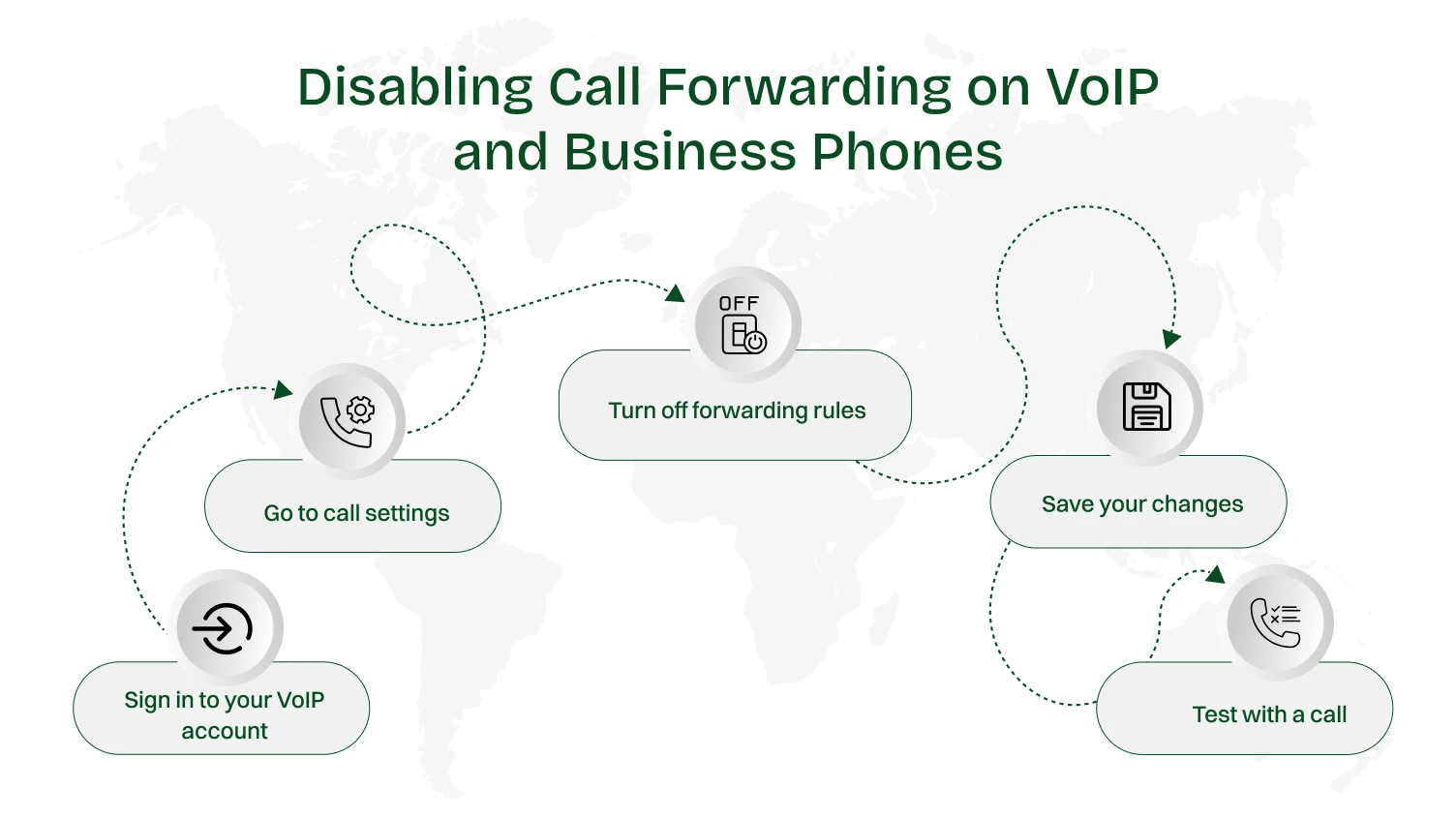
Business phone systems and VoIP do not operate like mobile phones or landline devices. They may have a dashboard, web portal, or an admin pane in place of a simple dial code, and call forwarding settings can be configured. This provides businesses with greater control, but requires you to know where to find it.
These are the most typical methods of disabling call forwarding on the VoIP and business phones:
When you are using a physical IP desk phone, i.e., a Mitel, Yealink, or Panasonic model, it likely has a menu button that will take you to call settings. There, you will have an option of call forwarding, which you can turn off. Some of these models can also accept cancellation codes, but again, this would be dependent on how your provider has been configured.
VoIP systems can be configured to temporarily disable as well, so you can temporarily stop call forwarding during office hours and re-enable it later should you require it. This is flexible enough to be applicable to remote workers or hybrid teams that require different arrangements at various times.
After you have turned off forwarding in your VoIP system, you will be glad to test everything. When you detect problems, such as one-way audio or calls being routed wrongly, then contact the support of your VoIP provider.
Now that we have VoIP and business phones, we can proceed to how big carriers, such as Verizon, AT&T, T-Mobile, and Spectrum, allow you to control and disable call forwarding.
Each mobile and home phone carrier gives users its own way to manage call forwarding. Some carriers support simple dial codes, while others provide app or web portal controls. Knowing the right method for your carrier saves time and ensures your calls come directly to your phone.
Here’s how to turn off call forwarding for the most common providers:
Verizon
You can also disable forwarding through the My Verizon app under “Account” → “Call Forwarding.”
AT&T
You can also disable call forwarding by opening the AT&T Call Protect app or using your AT&T online account.
T-Mobile
Alternatively, access your T-Mobile account via the internet or through the T-Mobile application and turn off call forwarding.
Spectrum
If using a landline or Spectrum Voice service, you can also dial *73 to turn off forwarding.
EE (UK)
Vodafone, Jio, Jazz, Zong, Etisalat, MTN
These carriers usually follow the GSM codes for disabling forwarding:
The method carrier may take various forms, but the aim is universal: to turn off forwarding so that the calls will reach you directly. With carriers covered, let’s look at some pro tips that make the process faster and more reliable.
Turning off call forwarding can result in a few typical issues. Being aware of these problems and the way to overcome them will ensure your calls are received as expected.
Call forwarding doesn’t have to be an all-or-nothing feature. You can customize it to fit your schedule, availability, and business needs. Knowing your options helps you manage calls more efficiently without missing important contacts.
Some users only need call forwarding active for a short period, like when traveling or attending meetings. Others may want it permanently, such as forwarding calls to a home office or secondary number.
How to Customize: On smartphones or VoIP systems, you can toggle call forwarding on and off as needed. Use your device settings or carrier codes to activate forwarding temporarily, and deactivate it when no longer needed. This flexibility allows you to control when calls are rerouted without changing core settings every time.
Call forwarding can be set for different situations, such as when you’re busy, unreachable, or do not answer. These conditional rules give you precise control over which calls are redirected.
How to Customize: Use dial codes like ##61# (no answer), ##62# (unreachable), and ##67# (busy) to enable or disable specific conditions. On devices, you can find options in call settings to manage each scenario separately. This ensures that only the calls you want forwarded actually go elsewhere, while others ring directly on your device.
Some carriers and VoIP systems allow forwarding calls to more than one number. This is particularly useful for teams or businesses that require calls to reach multiple employees or departments.
How to Customize: Check your carrier or VoIP app for multiple forwarding options. You can set primary and secondary numbers, prioritize them, or use simultaneous ringing. Testing each number ensures calls reach the correct destinations without conflicts.
Not all calls need to be forwarded. You may want to redirect calls from certain contacts while keeping others direct. This is particularly useful for prioritizing personal or VIP calls.
How to Customize: Some devices and VoIP apps let you create rules for individual numbers. You can select which contacts are forwarded and which are not. This creates a personalized call management system without affecting your overall forwarding settings.
Sometimes you may disable forwarding temporarily, but need it back later for emergencies or business hours. Having a plan to re-enable it quickly is important.
How to Customize: Save the dial codes or app settings for easy access. Mark reminders in your calendar for temporary forwarding schedules. This ensures you can reactivate forwarding quickly without confusion or missed calls.
Device notifications help you know when calls are being forwarded. Monitoring these ensures your forwarding settings are working correctly.
How to Customize: Enable or disable forwarding notifications based on your preference. On some devices, you can receive alerts when forwarding is active or deactivated. This gives you full visibility over your call routing without needing to test with calls constantly.
Call forwarding can work alongside voicemail to ensure no calls are lost. You can forward calls to another number while still letting others reach your voicemail.
How to Customize: Adjust your voicemail settings to handle calls that are not answered after forwarding. Some carriers allow simultaneous forwarding and voicemail capture, which maximizes call management flexibility.
When it comes to call forwarding, everyone has a different story. For some, it’s a lifesaver. For others, it can be confusing or even a little annoying. Hearing from real users gives us a better idea of how this feature actually works in everyday life.
What people love about it:
Where frustrations come in:
Tips people share with each other:
From what people say, call forwarding is still a convenient tool; it just works best when you stay on top of it. A little attention goes a long way toward avoiding the common headaches.
Call forwarding is one of those features you don’t think about until you really need it. It can save you from missed opportunities, help you stay professional, and keep your calls organized across devices. But knowing how to turn off call forwarding is just as important as setting it up. Whether you’re using an iPhone, an Android phone, a landline, or even a VoIP business phone system, the steps are straightforward once you know where to look.
From dialing shortcodes like *73 to tweaking carrier settings, you now have multiple ways to take back control of your calls. Remember, forwarding is a tool, not a permanent setting. Once you’re done, switch it off so you don’t risk missing important calls.
Go to Settings > Phone > Call Forwarding. Toggle the switch off, and your iPhone will stop redirecting calls.
Open the Phone app, tap Settings, then look under Call Settings or Supplementary Services. Select Call Forwarding and choose Turn Off.
The most common deactivation code in the U.S. is *73. For GSM networks, codes like #21# also work. Dial it, press call, and you should hear a confirmation tone.
Dial *#21# and press call. This will display your call forwarding status. On some carriers, you can also check directly under your call settings.
