

How to unblock a phone number? In-Depth Review

Imagine this: You’re trying to reach your girlfriend to apologize for missing dinner, but every call goes straight to voicemail. Panic sets in. Did she block you? Or is it just bad timing?
Don’t worry, you’re not alone.
Many of us face moments where a simple call feels impossible, and the frustration can be real.
In this quick guide, you’ll learn how to unblock a phone number on iPhone, Android, landlines, and even third-party apps like WhatsApp or Messenger. Whether it’s a friend, a client, or someone you need to reconnect with, these simple steps will help you restore communication smoothly and instantly.
Let’s get started!🚀
Unblocking a phone number is usually a simple three-step process.
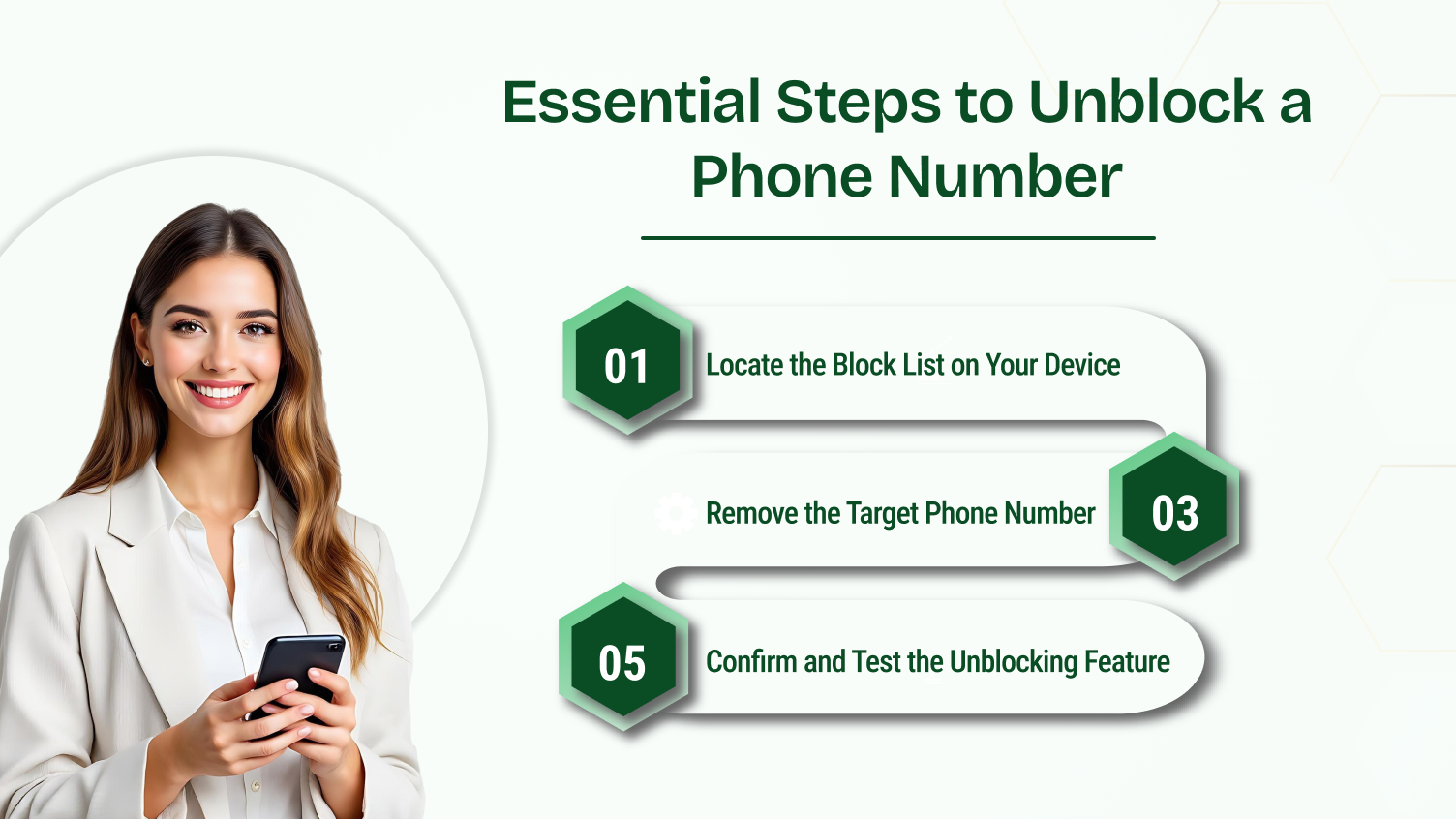
First, find the correct settings for your block list, which varies by device and location. It could be inside your main Phone app that was installed to block spam. It might be hidden in your primary Settings menu. On nearly all smartphones, you start with the main dialing application. Look for a menu icon there. This is usually three small dots or a gear icon.
When you finally see the list of blocked numbers, look closely. Find the specific number you need to receive calls from again. You will typically see a tiny delete icon. Look for an “X,” or a minus sign, right next to the number. Clicking this button shows your intent to unblock a number.
Your phone might ask for confirmation before it finishes the action. Once you confirm, the number is completely removed from the restriction list. You should ask the caller to try reaching your phone. This helps confirm the unblocking feature worked correctly and instantly.
Unblocking a number depends on the specific device or system you used to block it. Now that you know the basic three steps, let’s dive into the detailed instructions for popular platforms like Android, iPhone, and traditional landlines.
The simplest way to unblock a contact is directly through your device’s software. Most modern smartphones let you manage blocked numbers within the main settings.
This quick method saves you both time and effort. You will likely navigate a few menu options to find the master restriction list. This section details the exact process for both iPhone and Android devices.
How to Unblock a Number on iPhone (iOS)
The iPhone operating system, iOS, centralizes the block list in the main Settings app icon. This is the quickest way to unblock a contact or a private number. Follow these specific steps carefully.
How to Unblock a Number on Android
The process for Android devices is similar but relies on finding the correct menu options. Since different models (like Samsung Galaxy) have unique menu layouts, you must often search for the Options button. This method is generally accurate across most modern Androids. To unblock a number on Android, follow these steps:
Many wireless carriers offer additional call blocking service or apps. These tools often intercept spam or harassment calls before they even reach your phone. If you cannot find the number in your phone’s Settings, check your carrier’s app. These services may cost a small fee for premium features.
The T-Mobile Scam Shield app gives you direct control over unwanted calls. This app provides advanced scam-blocking technologies. If you need to unblock a phone number, use the app on your device. Here are the following steps to unblock a phone number on this app:
If you were using the T-Mobile Family Allowance feature to manage a dependent’s phone, you may need to manage the number from the main account. Log in to My T-Mobile on their website or app. Access the Family Allowance section under your My plan settings.
Verizon Call Filter is the app used to manage spam and unwanted callers. This effective consumer good offers a free basic service and a paid premium feature. The free version detects and identifies potential spam calls for you. The paid Call Filter Plus includes access to your Personal Block List. Use these steps to unblock a phone number on this app:
AT&T ActiveArmor is a security app and a network service. It blends automatic network protection with a mobile app interface. This powerful feature stops threats before they get to your phone. To unblock callers, you must find your personalized blacklist. Access this list directly through the app. Here are the following steps to unblock a phone number in this app:
Sometimes your phone hides your number by default. This can make your calls appear as Unknown, Private, or No Caller ID. If you want people to see your number again, you can easily turn Caller ID back on. The steps are quick and work on most phones and carriers.
Changing Permanent Caller ID Settings on iPhone and Android
You can easily control whether your number is shown for outgoing calls. This important feature is managed within your device’s primary settings. This is the first place you should check for a permanent fix.
Steps to Unblock Caller ID on IPhone:
Steps to Unblock Caller ID on Android:
Requesting a Permanent Unblock from Your Carrier
If your phone settings do not solve the issue, your wireless carrier service might be causing it. The network sometimes applies a universal setting to hide your number. The Primary Account Holder must request assistance from customer service.
You should ask for a permanent, network-level adjustment. This change forces your number to display to everyone you call. The carrier applies this new setting directly to your specific line.
🔥 Stuck managing multiple outbound call rules? Dialaxy offers a simple call flow designer to control all your calling needs instantly!
Temporary vs. Permanent Call Unblocking
Sometimes you don’t want to unblock your Caller ID forever—you just want the person you are calling to see your number for one call.
Here’s the difference:
| Type of Unblock | What It Does | When to Use It | How It Works |
|---|---|---|---|
| Temporary Unblock | Shows your number for one call only | When you want a single caller to see your number | Dial *82 before the phone number |
| Permanent Unblock | Always show your number on every call | When you want Caller ID turned on all the time | Change phone settings or contact your carrier |
You can use ∗82 before dialing any phone number. This will temporarily unblock your number for that one outbound call. This is an excellent, quick way to get through if your number is blocked. Dial ∗82, then the full 10-digit phone number. Your number will appear normally just for that instance.
The way to unblock a phone number depends entirely on your landline system. Many people still use landlines at home or in the office. Blocking issues are a real problem when you await an important call. Some homes use traditional phones that work through a phone jack. Others use modern VoIP phones that work through the internet. Both systems have different settings. The steps become very simple once you know where to search.
Before you start, check where the number was first blocked. It might be blocked on the phone itself. It could also be blocked through your service provider account. Finally, it might be on a physical hardware call blocker device. Once you determine the location, unblocking becomes easy and direct.
Unblocking Numbers on Digital Home Phones (VoIP or VoIP Provider)
VoIP home phones run through the internet connection. Because of this digital system, they save blocked numbers inside your provider’s account instead of in the physical phone. Providers like Xfinity, Spectrum, Vonage, or Ooma use this kind of online setup. This is the most common place to find the block list.
Here are the simplest steps to unblock a phone number on most VoIP home phones:
After following these steps, your phone should immediately start receiving calls from the number again. Sometimes you may need to restart your phone base or the internet modem for the changes to take effect instantly.
If you are using a VoIP home phone with an on-screen menu, you can also manage blocks directly. This applies to certain Panasonic or Nokia home sets. Open the menu on the handset.
Look for the Call Block option in the settings. Scroll through the internal list and select Delete or Unblock next to the desired number. This gives you a fast, device-level way to manage the block.
Managing Hardware Call Blockers
Some homes use a physical hardware call blocker device. This device sits between the phone and the wall outlet jack. These specialized devices block calls very well. They can sometimes block real callers by mistake, creating an issue. Brands like CPR Call Blocker or Sentry are common in many homes today.
To unblock a phone number on these specific devices, try these simple steps:
Some hardware call blockers keep a very long list of numbers. Finding the correct number can take precious time. If the device has a search button, use it for quick searching. If not, check the list slowly and carefully until you find the right number.
Important Note: In case you have unblocked the number in your physical device and still do not get calls, you may still be limited by your phone service provider. The carriers, such as AT&T or Verizon, sometimes assign numbers to your block list by default in their network settings.
Quick Check:
Many homes have more than one blocking system working at the same time. A number might be blocked in three different locations.
Make sure you check and remove the number from all three areas. Once the number is removed from each separate list, the person should be able to call you without any further issues. This thorough approach ensures you unblock all numbers effectively.
Blocking a number on your phone does not restrict that contact in other apps. This is a modern communication gap that people often forget. Third-party apps like WhatsApp and Messenger keep their own private restriction list.
You must unblock a phone number within each specific application. This section shows the simple steps for popular platforms.
How to unblock on WhatsApp
WhatsApp is a very popular messaging app. It keeps its own entirely separate list of blocked contacts. The block prevents the person from sending you messages or making calls inside the app. Use this straightforward method to restore contact quickly:
After this quick process, the person can immediately send messages and make calls to you on WhatsApp. If they tried to reach you while blocked, those messages were not delivered. They can now reach you normally and successfully.
How to unblock on Facebook Messenger.
Facebook Messenger also uses a separate block list tied to your Facebook account. The block typically prevents them from sending you messages and calls only through Messenger. Follow the steps within the app to unblock a contact.
Once unblocked, they can successfully send messages, make video calls, and react to your posts again. Remember, you will not automatically receive old messages that were blocked. They must send entirely new messages to you now.
How to unblock on TrueCaller or Hiya
Third-party spam-blocking apps like TrueCaller or Hiya create their own comprehensive blacklist. They operate as a strong filtering service for your phone. If a number is blocked here, it will never ring your phone. You must remove the number from the app’s internal restriction list. Here’s how to unblock:
After you unblock a number, your phone will start getting their calls and messages again. Always check two places to be sure. Check your phone’s own block list. Also, check the spam app’s block list. This way, you make sure the number is totally removed from all blocking rules.
Unblocking a phone number seems simple, but small errors can create problems. Avoiding these common mistakes ensures smooth communication and prevents frustration.
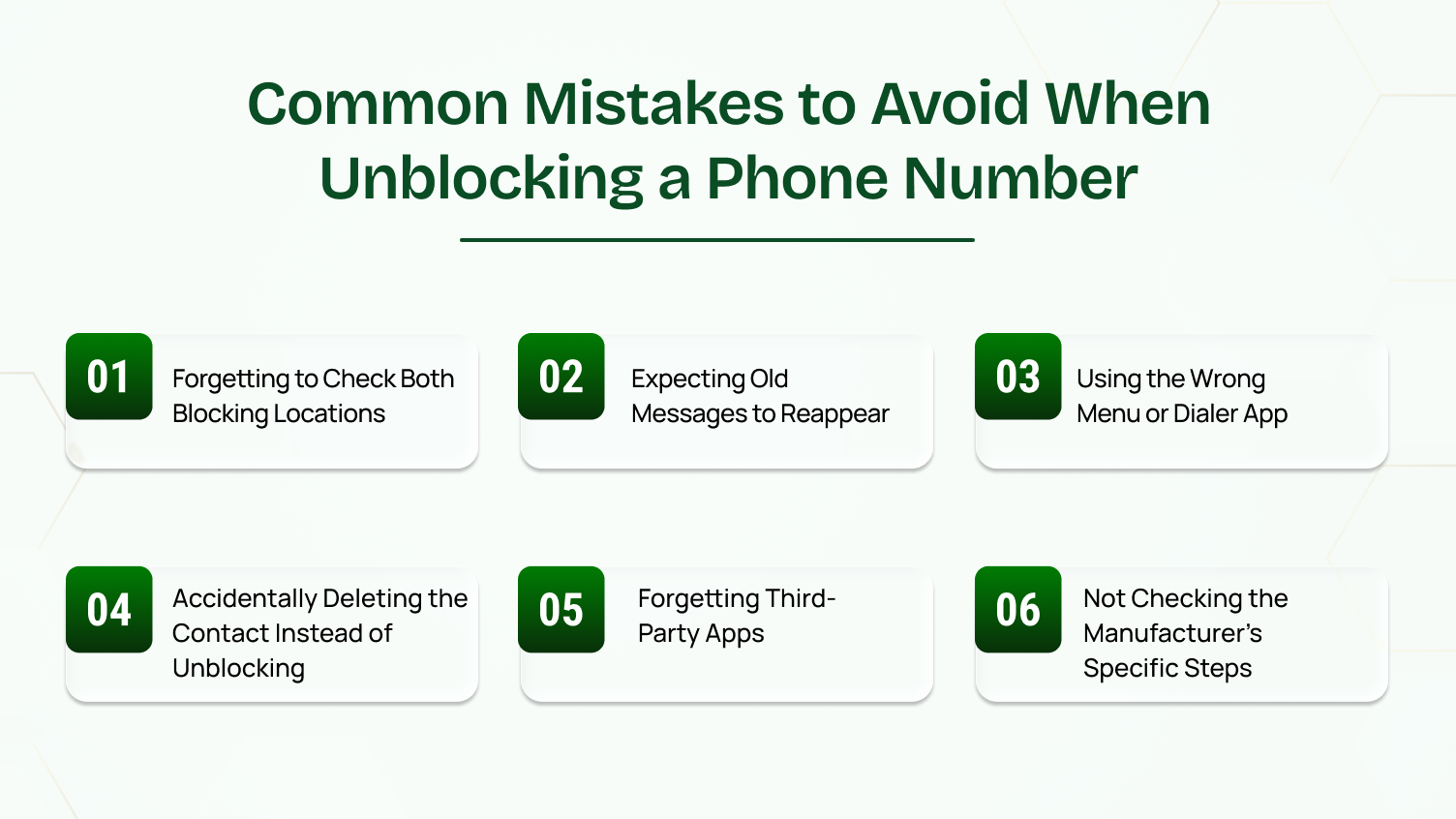
Most individuals look up the blocked phone number on their mobile phone and overlook the fact that they have also blocked the number via the wireless carrier, for instance, AT&T ActiveArmor, Verizon Call Filter, and T-Mobile Scam Shield. It is necessary to be aware of unblocking the phone number at both locations.
If you only unblock a number on your Android or iPhone Settings, the carrier’s service might still be stopping the calls from getting through. Check your personal block list on both your device and the carrier service or app.
A big misunderstanding is believing that unblocking will somehow make old text messages and calls from the blocked time reappear. It will not. When you unblock a number, you are only allowing future calls and messages to come in.
The messages sent while the person was blocked are generally dropped by the network or your phone and are permanently gone.
It is easy to get confused by your phone’s many settings. If you have an iPhone, you must go to the Phone section to find “Blocked Contacts”. If you have an Android, you often have to open the main calling app and look for a “blacklist” or “Blocked numbers” option.
If you use a landline, you might need to punch in a special code or check a separate call blocking device. Go straight to the specific section for blocking.
Sometimes, the delete button or icon looks a lot like the one for unblocking. Be careful. You might accidentally delete the contact’s number instead of removing the block.
Make sure you tap the clear “Unblock” option so you can successfully unblock callers.
Suppose you blocked someone on a nontraditional, outside of immediate SMS or Voice Calling Platforms such as Messenger or WhatsApp. Then, you must remove the block from the specific application in which you originally blocked the person.
Using the general settings for your phone to unblock a user will not re-establish the user’s access to you through the application. If you used a spam-blocking app like TrueCaller to block calls, you need to remove the number from that app’s “blacklist tab”.
The steps that should be followed to unlock a number may vary even in phones that have the same Android operating system. The menu design and naming of the choices could vary based on the model/brand of your smartphone, like Samsung or Nokia.
In case the general steps are not successful, find specific instructions on your model of the phone on the manufacture or find an article or video guide.
Never miss a crucial call from a client! Use Dialaxy’s virtual contact center to manage all customer communication channels effortlessly.
Sometimes we accidentally block a number. Other times, we realize we truly need to reconnect with someone we previously blocked. Unblocking a number is usually simple.
However, the exact process changes depending on your device or the specific app you use. Here are practical ways to do it quickly and efficiently.
Unblocking numbers is usually just a matter of going into your phone’s settings and clicking on the number. All major smartphone operating systems offer an easy way to view your list of blocked numbers by going into your settings and searching for ‘blocked numbers’ or ‘block’. Android and iPhones work in the same way.
You may have blocked a number through your cell phone’s carrier. For instance, some phone carriers use call-blocking services like AT&T ActiveArmor and My T-Mobile. They may also have online services where you can manage your blocked call list. If your number is still blocked through the carrier, you will need to contact them to allow calls through.
Messaging apps like WhatsApp or Facebook Messenger use their own separate blocking systems. Your phone block does not automatically restrict the numbers in these apps.
This is an important step you should not miss. Open the specific chat or the app settings. Find the blocked contact on the list. Then, simply tap Unblock. This ensures they can successfully send you messages again.
To let all the changes really happen, restart your phone after unblocking. There are times when the phone may still indicate a number as blocked even though the unblocking has been done due to a short-lived system cache.
The restart takes the phone’s call and message settings out of the cache, so the unblocking actually becomes effective.
There are numerous individuals who use applications that prevent spam calls. These have the ability to disrupt unblocking. Install any call-blocker or security application, like TrueCaller, Hiya, or any other spam blockers, and ensure that the number is also taken off the list of blocked numbers there.
If you are not getting calls after unblocking, then take a look at Do Not Disturb or Focus Mode settings. At times, numbers may be shown as blocked because the phone that the user possesses is set to mute calls from unknown or non-favorite contacts. Hence, the user can decide to modify the settings of the phone in a way that calls from all contacts or specific numbers are allowed.
It is usually better to make a test call after unblocking. Ask someone you know to verify that the calls and messages have been received by using a second phone number. This action prevents the unblocking from being ineffective and contributes to the detection of any further problems with the apps, settings, and carrier restrictions.
For small businesses or teams, managing communication involves more complexity than a single line. When managing customer or client numbers, you need a systematic way to track and, if necessary, unblock them. This is where tools like Dialaxy can provide considerable assistance.
Dialaxy’s suite of features is designed to streamline team communication and data management. Its social media checker can help businesses quickly find and verify callers or clients across multiple platforms. If a number was accidentally blocked, cross-referencing it with the social media finder ensures you have all the necessary contact details to re-establish communication via other methods.
To maintain a clean and accurate contact list, proactive checking is crucial. Businesses can use a phone number checker to verify that the internal blocking feature is working as expected. They also need to ensure that a recently unblocked number is successfully routing calls to the correct person on the team.
Using a platform that supports easy data management ensures you handle your block list efficiently. This way, your team can manage customer interactions without the risk of missing a potentially crucial client call due to an accidental block.
Knowing how to unblock a phone number gives you complete control over your communication. Whether you have an iPhone, an Android, or a landline, the steps are straightforward. You now have the full knowledge to confidently manage your connections.
Remember to always check more than one spot, which is a common mistake. Do not forget to look at your carrier’s service, like AT&,T or any third-party app you use. This thoroughness helps you fix accidental blocks easily and quickly unblock calls from all your devices.
Taking a moment to clean up your block list is a really smart habit to form. You can make sure important callers can always reach your phone without any unnecessary stress. Go ahead and put these simple and clear tricks to good use today.
The other individual won’t see any kind of notification that you’ve unblocked them. They will only see that their texts and calls are once again successfully coming through to you.
No, messages sent while the number was blocked are permanently lost. Your phone or carrier does not store them for later delivery.
If you deleted the call log, you can’t unblock the number from the log. Go to your phone’s blocked numbers list in settings and remove it manually.
Yes, you can unblock a number on your phone without notifying the other person. They won’t get any alert or message about it.
No, you won’t receive any previous blocked messages once you unblock. Only new messages will be delivered once the block has been lifted.
Go to your phone’s call or contacts settings, find the number, and select “Block”. This will permanently block calls and messages from that number.
Blocking on your phone is managed only by your device’s operating system. Blocking through your carrier (like AT&T or T-Mobile) happens at the network level. A carrier block means the call is stopped before it even reaches your cell phone.
